

Appearance
Meteor.js 3 + Blaze
在本教程中,我们将使用 Blaze 和 Meteor 3.0 创建一个简单的 To-Do 应用。Meteor 可以很好地与其他框架配合使用,例如 React、Vue 3、Solid 和 Svelte。
¥In this tutorial, we will create a simple To-Do app using Blaze and Meteor 3.0. Meteor works well with other frameworks like React, Vue 3, Solid, and Svelte.
Blaze 是 Meteor 在 2011 年发布时创建的一部分,React 由 Facebook 于 2013 年创建。两者都已被大型生产应用成功使用。Blaze 最容易学习,并且拥有最多的全栈 Meteor 包,但 React 更成熟,社区也更大。Vue、Solid 和 Svelte 是一些团队偏爱的较新的 UI 框架。选择你喜欢的,但学习 Blaze 始终是一个好主意,因为即使你使用的是 React 之类的框架,你可能也希望在应用中使用 Blaze UI 包。accounts-ui 包就是一个很好的例子。
¥Blaze was created as part of Meteor when it launched in 2011, React was created by Facebook in 2013. Both have been used successfully by large production apps. Blaze is the easiest to learn and has the most full-stack Meteor packages, but React is more developed and has a larger community. Vue, Solid and Svelte are newer UI frameworks that some teams prefer. Choose what you like but learning Blaze is always a good idea because you may want to use Blaze UI packages with your app even if you are using something like React. The accounts-ui package is a good example.
Blaze 是一个强大的库,它使用易于学习的类似 Handlebars 的模板语法编写响应式 HTML 模板来创建用户界面。如果你是新手,不确定使用哪个 UI 框架,Blaze 是一个不错的选择。与使用传统模板和 jQuery 的组合相比,Blaze 消除了应用中所有监听数据更改和操作 DOM 的“更新逻辑”。Spacebars 使用了熟悉的模板指令,例如 {{#if}} 和 {{#each}},并集成了 追踪器的“透明响应式”和 Minimongo 的 数据库游标,从而实现 DOM 自动更新。
¥Blaze is a powerful library for creating user interfaces by writing reactive HTML templates using an easy-to-learn Handlebars-like template syntax. If you are new and not sure what UI framework to use, Blaze is a great place to start. Compared to using a combination of traditional templates and jQuery, Blaze eliminates the need for all the “update logic” in your app that listens for data changes and manipulates the DOM. Instead, familiar template directives like {{#if}} and {{#each}} integrates with Tracker’s “transparent reactivity” and Minimongo’s database cursors so that the DOM updates automatically.
要开始构建 Blaze 应用,你需要一个代码编辑器。如果你不确定选择哪一个,Visual Studio 代码 是一个不错的选择。
¥To start building your Blaze app, you'll need a code editor. If you're unsure which one to choose, Visual Studio Code is a good option.
让我们开始构建你的应用!
¥Let’s begin building your app!
目录
¥Table of Contents
1:创建应用
¥1: Creating the app
1.1:安装 Meteor
¥1.1: Install Meteor
首先,我们需要按照 安装指南 的步骤安装 Meteor。
¥First, we need to install Meteor by following this installation guide.
1.2:创建 Meteor 项目
¥1.2: Create Meteor Project
使用 Blaze 配置 Meteor 的最简单方法是使用命令 meteor create,并加上选项 --blaze 和你的项目名称:
¥The easiest way to setup Meteor with Blaze is by using the command meteor create with the option --blaze and your project name:
shell
meteor create --blaze simple-todos-blazeMeteor 将为你创建所有必要的文件。
¥Meteor will create all the necessary files for you.
位于 client 目录中的文件正在设置你的客户端(Web),例如,你可以看到 client/main.html,其中 Meteor 正在将你的 App 主要组件渲染到 HTML 中。
¥The files located in the client directory are setting up your client side (web), you can see for example client/main.html where Meteor is rendering your App main component into the HTML.
此外,请检查 Meteor 设置服务器端(Node.js)的 server 目录,你可以看到 server/main.js,这里非常适合初始化 MongoDB 数据库并添加一些数据。你不需要安装 MongoDB,因为 Meteor 提供了一个可供你使用的嵌入式版本。
¥Also, check the server directory where Meteor is setting up the server side (Node.js), you can see the server/main.js which would be a good place to initialize your MongoDB database with some data. You don't need to install MongoDB as Meteor provides an embedded version of it ready for you to use.
你现在可以使用以下命令运行 Meteor 应用:
¥You can now run your Meteor app using:
shell
meteor不用担心,从现在开始,Meteor 将使你的应用与所有更改保持同步。
¥Don't worry, Meteor will keep your app in sync with all your changes from now on.
快速浏览 Meteor 创建的所有文件,你现在不需要了解它们,但知道它们在哪里会很好。
¥Take a quick look at all the files created by Meteor, you don't need to understand them now but it's good to know where they are.
你的 Blaze 代码将位于 imports/ui 目录中,App.html 和 App.js 文件将作为 Blaze 待办事项应用的根组件。我们尚未完成这些,但很快就会完成。
¥Your Blaze code will be located inside the imports/ui directory, and the App.html and App.js files will be the root component of your Blaze To-do app. We haven't made those yet but will soon.
1.3:创建任务组件
¥1.3: Create Task Component
要开始开发我们的待办事项应用,请将默认启动应用的代码替换为以下代码。接下来,我们将讨论它的作用。
¥To start working on our todo list app, let’s replace the code of the default starter app with the code below. From there, we’ll talk about what it does.
首先,让我们从 HTML 入口点中移除 body 标签(只保留 <head> 标签):
¥First, let’s remove the body from our HTML entry-point (leaving just the <head> tag):
html
<head>
  <title>Simple todo</title>
</head>
在 simple-todos-blaze 文件夹内创建一个名为 imports 的新目录。在 imports 文件夹中,创建一个名为 ui 的目录,并在其中添加一个 App.html 文件,内容如下:
¥Create a new directory named imports inside the simple-todos-blaze folder. In the imports folder, create another directory with the name ui and add an App.html file inside of it with the content below:
html
<body>
    {{> mainContainer }}
</body>

<template name="mainContainer">
    <div class="container">
        <header>
            <h1>Todo List</h1>
        </header>

        <ul>
            {{#each tasks}}
                {{> task}}
            {{/each}}
        </ul>
    </div>
</template>

<template name="task">
    <li>{{text}}</li>
</template>我们刚刚创建了两个模板:mainContainer,它将渲染到应用的 body 中;以及一个标题和一个任务列表,其中每个任务将使用 task 模板渲染。现在,我们需要一些数据来在此页面上显示示例任务。
¥We just created two templates, the mainContainer, which will be rendered in the body of our app, and it will show a header and a list of tasks that will render each item using the task template. Now, we need some data to present sample tasks on this page.
1.4:创建示例任务
¥1.4: Create Sample Tasks
在 ui 文件夹中创建一个名为 App.js 的新文件。
¥Create a new file called App.js in your ui folder.
在入口点 main.js 文件中,删除所有先前的内容,并添加以下代码以导入新文件 imports/ui/App.js:
¥Inside your entry-point main.js file, remove all the previous content and just add the code below to import the new file imports/ui/App.js:
js
import '../imports/ui/App.js';由于你尚未连接到服务器和数据库,我们先定义一些示例数据,稍后将使用这些数据来渲染任务列表。将以下代码添加到 App.js 文件:
¥As you are not connecting to your server and database yet, let’s define some sample data, which we will use shortly to render a list of tasks. Add the code below to the App.js file:
js
import { Template } from 'meteor/templating';

import './App.html';

Template.mainContainer.helpers({
  tasks: [
    { text: 'This is task 1' },
    { text: 'This is task 2' },
    { text: 'This is task 3' },
  ],
});
通过向 mainContainer 模板添加辅助函数,你可以定义任务数组。应用启动时,客户端入口点将导入 App.js 文件,该文件也会导入我们在上一步创建的 App.html 模板。
¥Adding a helper to the mainContainer template, you are able to define the array of tasks. When the app starts, the client-side entry-point will import the App.js file, which will also import the App.html template we created in the previous step.
此时,Meteor 应该正在 3000 端口上运行,你可以访问正在运行的应用,并在 http://localhost:3000/ 中看到包含三个任务的列表。 - 但是,如果 Meteor 没有运行,请转到终端并切换到项目的根目录,然后输入 meteor 并按回车键启动应用。
¥At this point meteor should be running on port 3000 so you can visit the running app and see your list with three tasks displayed at http://localhost:3000/ - but if meteor is not running, go to your terminal and move to the top directory of your project and type meteor then press return to launch the app.
完成!让我们来看看这些代码片段的作用!
¥All right! Let’s find out what all these bits of code are doing!
1.5:渲染数据
¥1.5: Rendering Data
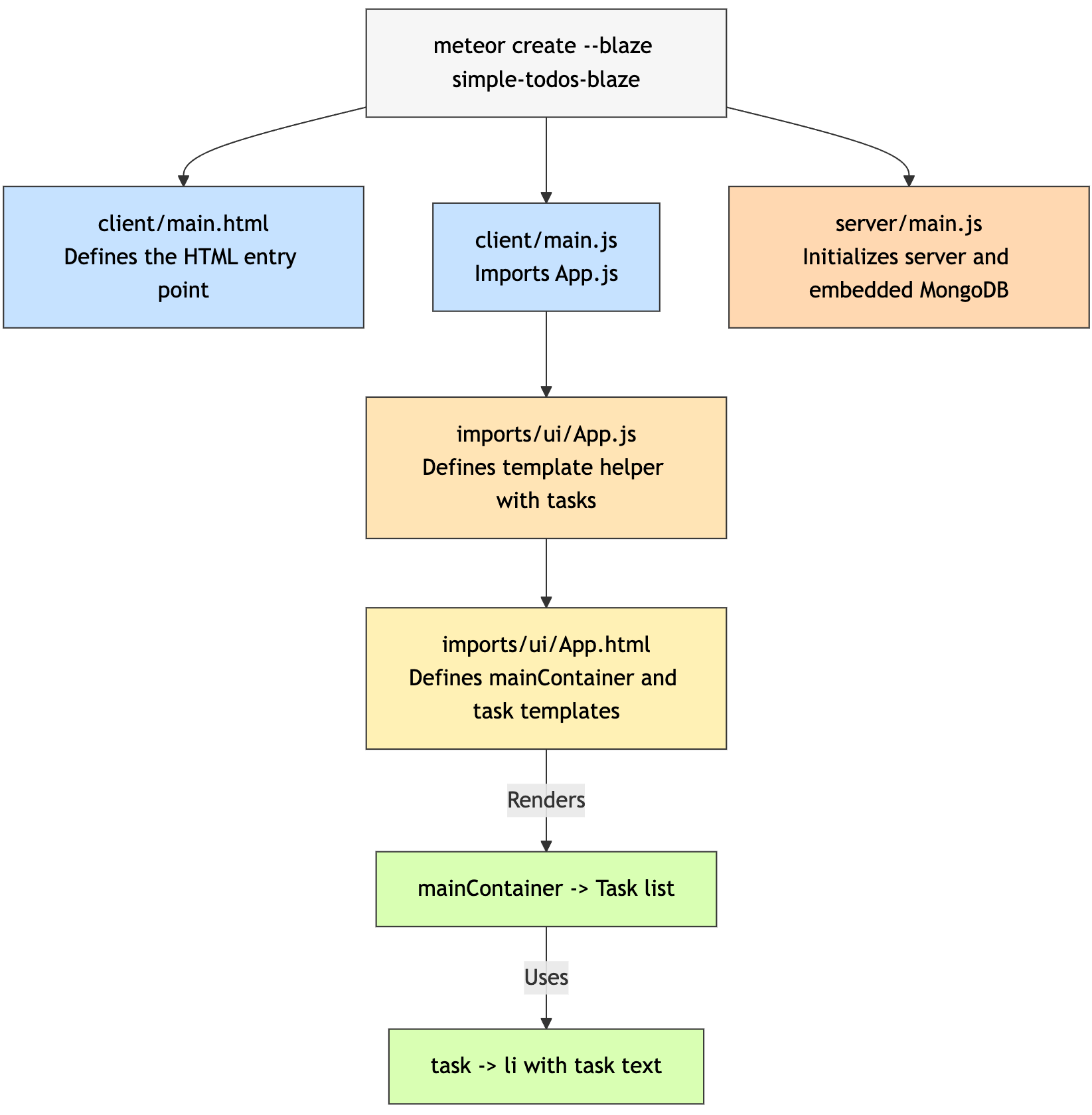
Meteor 解析 HTML 文件并识别三个顶层标签:<head>、<body> 和 <template>。
¥Meteor parses HTML files and identifies three top-level tags: <head>, <body>, and <template>.
所有 <head> 标签内的内容都会被添加到发送给客户端的 HTML 的 <head> 部分,而所有 <body> 标签内的内容都会被添加到 <body> 部分,就像在普通的 HTML 文件中一样。
¥Everything inside any <head> tags is added to the head section of the HTML sent to the client, and everything inside <body> tags is added to the body section, just like in a regular HTML file.
<template> 标签内的所有内容都会被编译成 Meteor 模板,这些模板可以通过 {{> templateName}} 包含在 HTML 中,也可以通过 Template.templateName 在 JavaScript 中引用。
¥Everything inside <template> tags is compiled into Meteor templates, which can be included inside HTML with {{> templateName}} or referenced in your JavaScript with Template.templateName.
此外,你可以在 JavaScript 中使用 Template.body 引用 body 部分。可以将其视为一个特殊的“父”模板,它可以包含其他子模板。
¥Also, the body section can be referenced in your JavaScript with Template.body. Think of it as a special “parent” template, that can include the other child templates.
HTML 文件中的所有代码都将使用 Meteor 的空格键编译器 进行编译。Spacebars 使用双花括号括起来的语句(例如 {{#each}} 和 {{#if}})来向视图添加逻辑和数据。
¥All of the code in your HTML files will be compiled with Meteor’s Spacebars compiler. Spacebars uses statements surrounded by double curly braces such as {{#each}} and {{#if}} to let you add logic and data to your views.
你可以通过定义辅助函数,将数据从 JavaScript 代码传递到模板中。在上面的代码中,我们定义了一个名为 tasks 的辅助函数,该函数位于 Template.mainContainer 上,并返回一个数组。在 HTML 的 template 标签内,我们可以使用 {{#each tasks}} 遍历数组,并为每个值插入一个任务模板。在 #each 代码块中,我们可以使用 {{text}} 显示每个数组项的 text 属性。
¥You can pass data into templates from your JavaScript code by defining helpers. In the code above, we defined a helper called tasks on Template.mainContainer that returns an array. Inside the template tag of the HTML, we can use {{#each tasks}} to iterate over the array and insert a task template for each value. Inside the #each block, we can display the text property of each array item using {{text}}.
1.6:移动端外观
¥1.6: Mobile Look
让我们看看你的应用在移动设备上的显示效果。你可以通过在浏览器中使用 right clicking 启动你的应用(我们假设你使用的是 Google Chrome,因为它是最流行的浏览器)来模拟移动环境,然后再使用 inspect,这将在浏览器中打开一个名为 Dev Tools 的新窗口。在 Dev Tools 中,你会看到一个显示移动设备和平板电脑的小图标:
¥Let’s see how your app is looking on mobile. You can simulate a mobile environment by right clicking your app in the browser (we are assuming you are using Google Chrome, as it is the most popular browser) and then inspect, this will open a new window inside your browser called Dev Tools. In the Dev Tools you have a small icon showing a Mobile device and a Tablet:
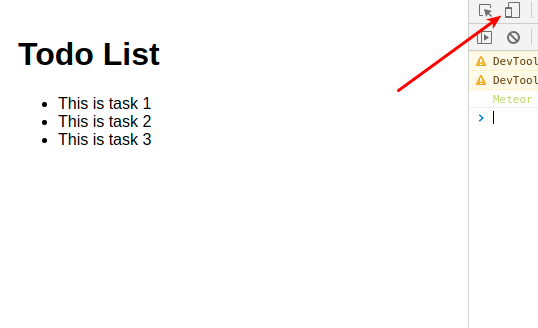
点击它,然后在顶部导航栏中选择你要模拟的手机。
¥Click on it and then select the phone that you want to simulate and in the top nav bar.
你还可以在个人手机上测试你的应用。为此,请在移动浏览器的导航栏中使用本地 IP 地址连接到你的应用。
¥You can also check your app in your personal cellphone. To do so, connect to your App using your local IP in the navigation browser of your mobile browser.
此命令应在 Unix 系统
ifconfig | grep "inet " | grep -Fv 127.0.0.1 | awk '{print $2}'上打印你的本地 IP 地址。¥This command should print your local IP for you on Unix systems
ifconfig | grep "inet " | grep -Fv 127.0.0.1 | awk '{print $2}'在 Microsoft Windows 系统中,请在命令提示符中尝试以下命令:
ipconfig | findstr "IPv4 Address"¥On Microsoft Windows try this in a command prompt
ipconfig | findstr "IPv4 Address"
你应该看到以下内容:
¥You should see the following:
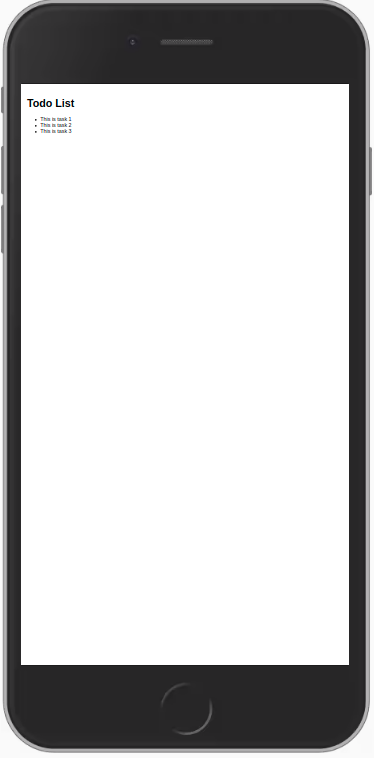
如你所见,所有内容都很小,因为我们没有针对移动设备调整视口。你可以通过在 client/main.html 文件中,在 head 标签内、title 之后添加以下代码行来修复此问题和其他类似问题。
¥As you can see, everything is small, as we are not adjusting the view port for mobile devices. You can fix this and other similar issues by adding these lines to your client/main.html file, inside the head tag, after the title.
html
...
  <meta charset="utf-8"/>
  <meta http-equiv="x-ua-compatible" content="ie=edge"/>
  <meta
      name="viewport"
      content="width=device-width, height=device-height, viewport-fit=cover, initial-scale=1, maximum-scale=1, minimum-scale=1, user-scalable=no"
  />
  <meta name="mobile-web-app-capable" content="yes"/>
  <meta name="apple-mobile-web-app-capable" content="yes"/>
...
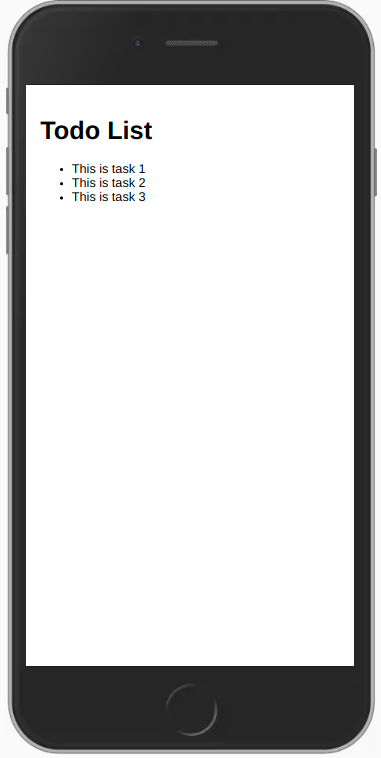
现在,你的应用应该如下所示:
¥Now your app should look like this:
1.7:热模块替换
¥1.7: Hot Module Replacement
默认情况下,当 Meteor 与 Blaze 结合使用时,系统会自动添加一个名为 hot-module-replacement 的包。此软件包更新正在运行的应用中在重建期间修改的 javascript 模块。缩短开发过程中的反馈周期,让你可以更快地查看和测试更改(甚至在构建完成之前更新应用)。你也不会丢失状态,你的应用代码将会更新,并且你的状态将保持不变。
¥By default, when using Blaze with Meteor, a package called hot-module-replacement is already added for you. This package updates the javascript modules in a running app that were modified during a rebuild. Reduces the feedback cycle while developing, so you can view and test changes quicker (it even updates the app before the build has finished). You are also not going to lose the state, your app code will be updated, and your state will be the same.
你可以在 此处 中了解更多有关包的信息。
¥You can read more about packages here.
此时你还应该添加 dev-error-overlay 包,以便在 Web 浏览器中查看错误。
¥You should also add the package dev-error-overlay at this point, so you can see the errors in your web browser.
shell
meteor add dev-error-overlay你可以尝试犯一些错误,这样你不仅会在控制台中看到错误信息,还会在浏览器中看到错误信息。
¥You can try to make some mistakes and then you are going to see the errors in the browser and not only in the console.
下一步,我们将使用 MongoDB 数据库来存储任务。
¥In the next step we are going to work with our MongoDB database to be able to store our tasks.
2:集合
¥2: Collections
Meteor 已经为你设置了 MongoDB。为了使用我们的数据库,我们需要创建一个集合,我们将在其中存储我们的文档,在我们的例子中是 tasks。
¥Meteor already sets up MongoDB for you. In order to use our database, we need to create a collection, which is where we will store our documents, in our case our tasks.
你可以阅读有关集合 此处 的更多信息。
¥You can read more about collections here.
在此步骤中,我们将实现所有必要的代码,以便为我们的任务建立一个基本集合并运行。
¥In this step we will implement all the necessary code to have a basic collection for our tasks up and running.
2.1:创建任务集合
¥2.1: Create Tasks Collection
如果 imports/api 中尚不存在该目录,则创建一个新目录。我们可以通过在 imports/api/TasksCollection.js 处创建一个新文件来创建一个新集合来存储我们的任务,该文件实例化一个新的 Mongo 集合并将其导出。
¥Create a new directory in imports/api if it doesn't exist already. We can create a new collection to store our tasks by creating a new file at imports/api/TasksCollection.js which instantiates a new Mongo collection and exports it.
js
import { Mongo } from "meteor/mongo";

export const TasksCollection = new Mongo.Collection("tasks");
请注意,我们将文件存储在 imports/api 目录中,该目录是存储 API 相关代码(如发布物和方法)的地方。你可以根据需要命名此文件夹,这只是一个选择。
¥Notice that we stored the file in the imports/api directory, which is a place to store API-related code, like publications and methods. You can name this folder as you want, this is just a choice.
你可以阅读有关应用结构和导入/导出 此处 的更多信息。
¥You can read more about app structure and imports/exports here.
2.2:初始化任务集合
¥2.2: Initialize Tasks Collection
为了使我们的集合正常工作,你需要将其导入服务器,以便设置一些管道。
¥For our collection to work, you need to import it in the server so it sets some plumbing up.
如果你要在同一个文件上使用,你可以使用 import "/imports/api/TasksCollection" 或 import { TasksCollection } from "/imports/api/TasksCollection",但请确保它已导入。
¥You can either use import "/imports/api/TasksCollection" or import { TasksCollection } from "/imports/api/TasksCollection" if you are going to use on the same file, but make sure it is imported.
现在很容易检查我们的集合中是否有数据,否则,我们也可以轻松插入一些示例数据。
¥Now it is easy to check if there is data or not in our collection, otherwise, we can insert some sample data easily as well.
你不需要保留 server/main.js 的旧内容。
¥You don't need to keep the old content of server/main.js.
js
import { Meteor } from "meteor/meteor";
import { TasksCollection } from "/imports/api/TasksCollection";

const insertTask = (taskText) =>
  TasksCollection.insertAsync({ text: taskText });

Meteor.startup(async () => {
  if ((await TasksCollection.find().countAsync()) === 0) {
    [
      "First Task",
      "Second Task",
      "Third Task",
      "Fourth Task",
      "Fifth Task",
      "Sixth Task",
      "Seventh Task",
    ].forEach(insertTask);
  }
});
因此,你正在导入 TasksCollection 并向其添加一些任务,遍历字符串数组,并为每个字符串调用一个函数将此字符串作为我们的 text 字段插入到我们的 task 文档中。
¥So you are importing the TasksCollection and adding a few tasks to it iterating over an array of strings and for each string calling a function to insert this string as our text field in our task document.
2.3:渲染任务集合
¥2.3: Render Tasks Collection
接下来是有趣的部分,你将使用 Blaze 渲染任务。这很简单。
¥Now comes the fun part, you will render the tasks with Blaze. That will be pretty simple.
在你的 App.js 文件中,导入 TasksCollection 文件,并且不要返回静态数组,而是返回数据库中保存的任务:
¥In your App.js file, import the TasksCollection file and, instead of returning a static array, return the tasks saved in the database:
javascript
import { Template } from 'meteor/templating';
import { TasksCollection } from "../api/TasksCollection";
import './App.html';

Template.mainContainer.helpers({
  tasks() {
    return TasksCollection.find({});
  },
});
但请稍等!缺少某些内容。如果你现在运行你的应用,你将看到你没有渲染任何任务。
¥But wait! Something is missing. If you run your app now, you'll see that you don't render any tasks.
这是因为我们需要将数据发布到客户端。
¥That's because we need to publish our data to the client.
有关发布物/订阅的更多信息,请查看我们的 docs。
¥For more information on Publications/Subscriptions, please check our docs.
Meteor 不需要 REST 调用。它依赖于服务器端的 MongoDB 与客户端的 MiniMongoDB 进行同步。它通过先在服务器端发布集合,然后在客户端订阅这些集合来实现这一点。
¥Meteor doesn't need REST calls. It instead relies on synchronizing the MongoDB on the server with a MiniMongoDB on the client. It does this by first publishing collections on the server and then subscribing to them on the client.
首先,为我们的任务创建一个发布:
¥First, create a publication for our tasks:
javascript
import { Meteor } from "meteor/meteor";
import { TasksCollection } from "./TasksCollection";

Meteor.publish("tasks", function () {
  return TasksCollection.find();
});
现在,我们需要将此文件导入我们的服务器:
¥Now, we need to import this file in our server:
js
...
import { TasksCollection } from '/imports/api/TasksCollection';

import "../imports/api/TasksPublications";

const insertTask = taskText => TasksCollection.insertAsync({ text: taskText });
...
剩下唯一要做的事情就是订阅此发布:
¥The only thing left is subscribe to this publication:
javascript
...

Template.mainContainer.onCreated(function mainContainerOnCreated() {
  Meteor.subscribe('tasks');
});

...
查看你的应用现在应该是什么样子:
¥See how your app should look like now:
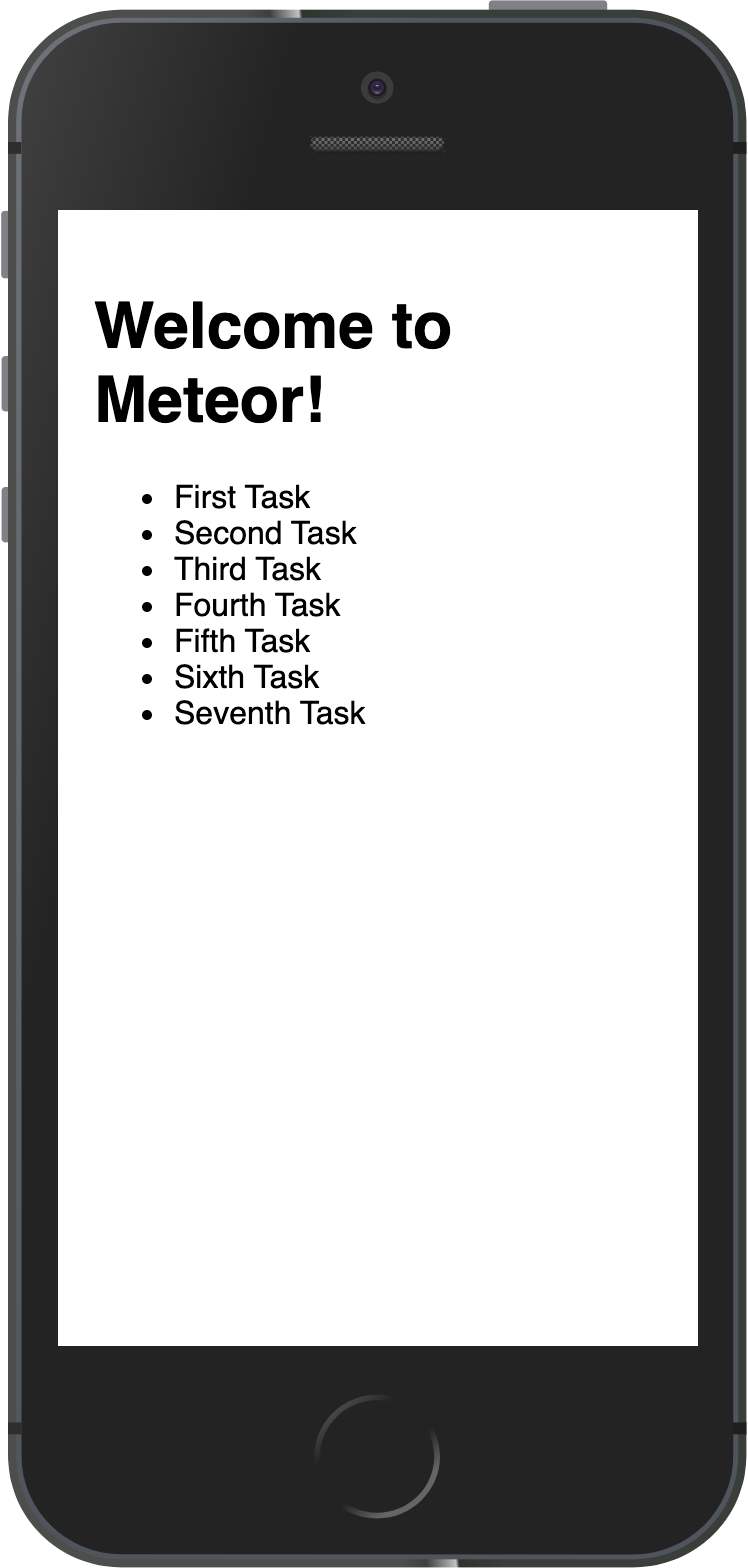
你可以在服务器上更改 MongoDB 上的数据,你的应用将做出反应并为你重新渲染。
¥You can change your data on MongoDB in the server and your app will react and re-render for you.
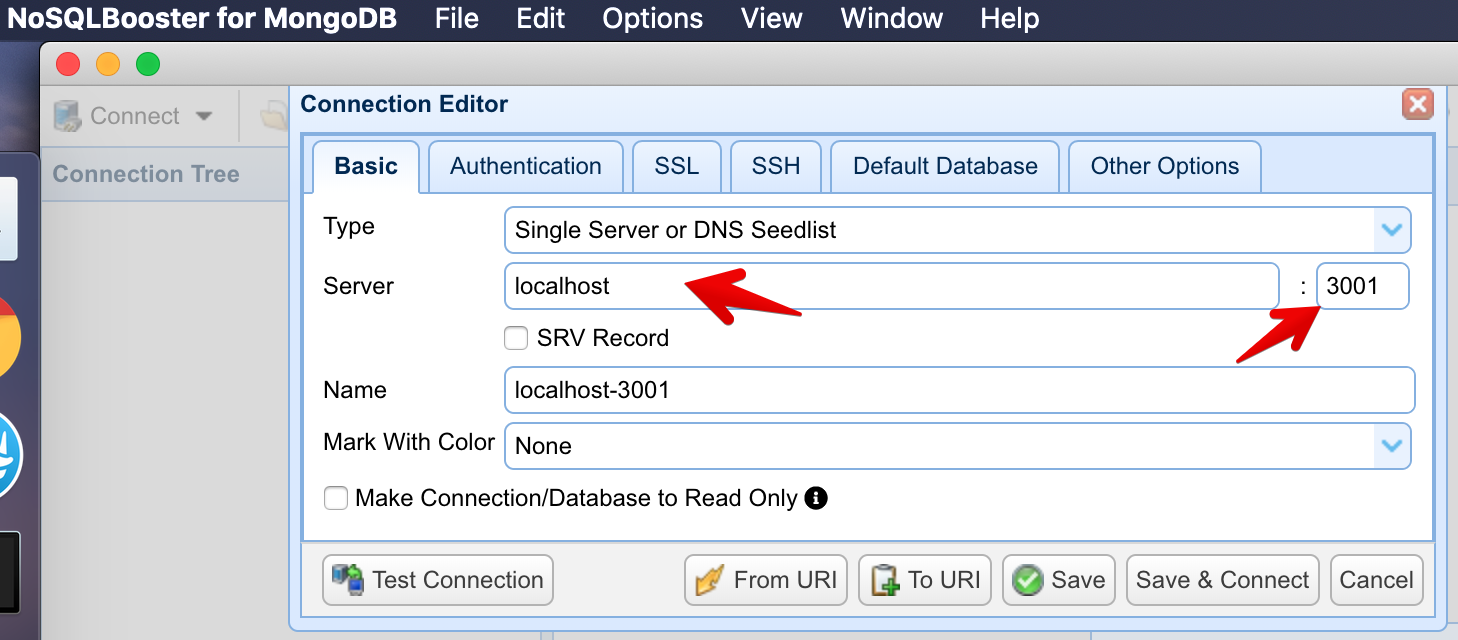
你可以从应用文件夹或使用 Mongo UI 客户端(如 NoSQLBooster)连接到在终端中运行 meteor mongo 的 MongoDB。你的嵌入式 MongoDB 正在端口 3001 中运行。
¥You can connect to your MongoDB running meteor mongo in the terminal from your app folder or using a Mongo UI client, like NoSQLBooster. Your embedded MongoDB is running in port 3001.
查看如何连接:
¥See how to connect:
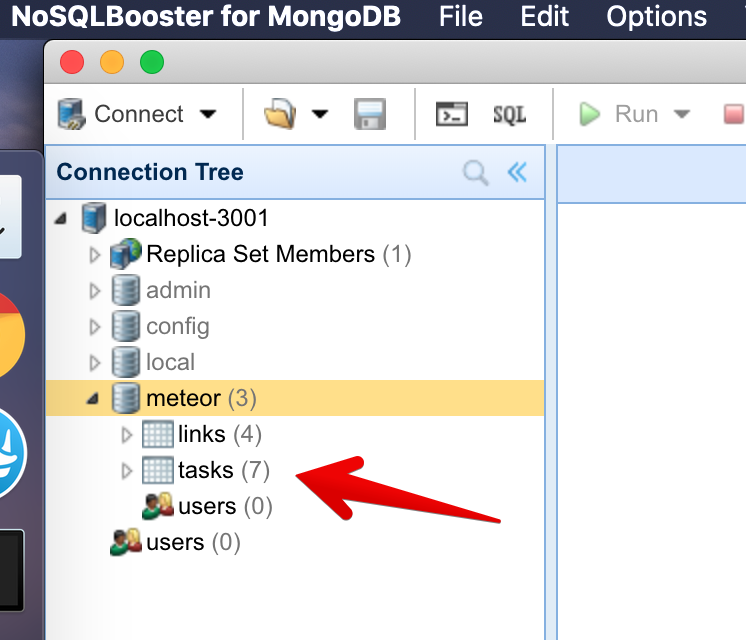
查看你的数据库:
¥See your database:
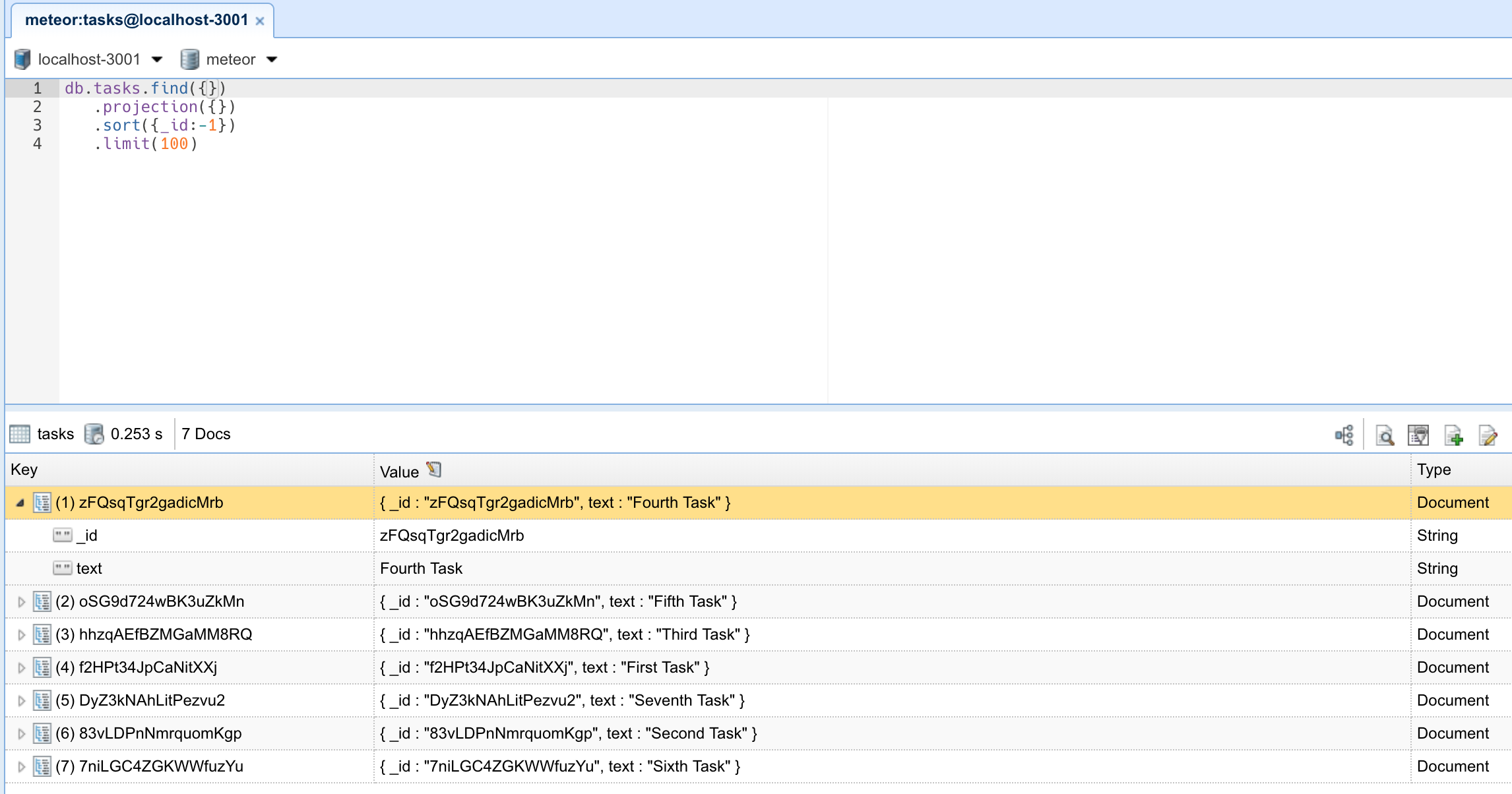
你可以双击你的集合以查看存储在其中的文档:
¥You can double-click your collection to see the documents stored on it:
在下一步中,我们将使用表单创建任务。
¥In the next step, we are going to create tasks using a form.
3:表单和事件
¥3: Forms and Events
所有应用都需要允许用户与存储的数据进行某种交互。在我们的例子中,第一种交互类型是插入新任务。没有它,我们的 To-Do 应用就不会很有用。
¥All apps need to allow the user to perform some sort of interaction with the data that is stored. In our case, the first type of interaction is to insert new tasks. Without it, our To-Do app wouldn't be very helpful.
用户在网站上插入或编辑数据的主要方式之一是通过表单。在大多数情况下,使用 <form> 标签是个好主意,因为它赋予其中的元素语义。
¥One of the main ways in which a user can insert or edit data on a website is through forms. In most cases, it is a good idea to use the <form> tag since it gives semantic meaning to the elements inside it.
3.1:创建任务表单
¥3.1: Create Task Form
首先,我们需要创建一个简单的表单组件来封装我们的逻辑。
¥First, we need to create a simple form component to encapsulate our logic.
在 App.html 文件中创建一个名为 form 的新模板,并在该模板中添加一个输入框和一个按钮:
¥Create a new template named form inside the App.html file, and inside of the new template, we’ll add an input field and a button:
html
...

<template name="form">
    <form class="task-form">
        <input type="text" name="text" placeholder="Type to add new tasks" />
        <button type="submit">Add Task</button>
    </form>
</template>
3.2:更新 mainContainer 模板元素
¥3.2: Update the mainContainer template element
然后,我们可以简单地将以下内容添加到任务列表上方的 mainContainer 模板中:
¥Then we can simply add this to our mainContainer template above your list of tasks:
html
...

<template name="mainContainer">
    <div class="container">
        <header>
            <h1>Todo List</h1>
        </header>

        {{> form }}

        <ul>
            {{#each tasks}}
                {{> task}}
            {{/each}}
        </ul>
    </div>
</template>

...
我们正在渲染上一步创建的 form 模板,并遍历每个 tasks 组件,使用 task 模板渲染它们。
¥We are rendering the form template that we created in the previous step, and we are iterating over each of the tasks and rendering them using the task template.
3.3:更新样式表
¥3.3: Update the Stylesheet
你还可以根据需要设置其样式。目前,我们只需要顶部的一些边距,这样表单就不会显得偏离目标。添加 CSS 类 .task-form,这需要与表单组件中 class 属性中的名称相同。
¥You also can style it as you wish. For now, we only need some margin at the top so the form doesn't seem off the mark. Add the CSS class .task-form, this needs to be the same name in your class attribute in the form component.
css
.task-form {
  margin-top: 1rem;
}
3.4:添加提交处理程序
¥3.4: Add Submit Handler
现在让我们创建一个函数来处理表单提交并将新任务插入数据库。为此,我们需要实现一个 Meteor 方法。
¥Now let's create a function to handle the form submit and insert a new task into the database. To do it, we will need to implement a Meteor Method.
方法本质上是对服务器的 RPC 调用,可让你安全地在服务器端执行操作。你可以阅读有关 Meteor 方法 此处 的更多信息。
¥Methods are essentially RPC calls to the server that let you perform operations on the server side securely. You can read more about Meteor Methods here.
要创建方法,你可以创建一个名为 TasksMethods.js 的文件。
¥To create your methods, you can create a file called TasksMethods.js.
javascript
import { Meteor } from "meteor/meteor";
import { TasksCollection } from "./TasksCollection";

Meteor.methods({
  "tasks.insert"(doc) {
    return TasksCollection.insertAsync(doc);
  },
});
请记住在 main.js 服务器文件中导入你的方法,删除 insertTask 函数,并在 forEach 代码块中调用新的 Meteor 方法。
¥Remember to import your method on the main.js server file, delete the insertTask function, and invoke the new meteor method inside the forEach block.
javascript
import { Meteor } from "meteor/meteor";
import { TasksCollection } from "/imports/api/TasksCollection";
import "../imports/api/TasksPublications";
import "../imports/api/TasksMethods";

Meteor.startup(async () => {
  if ((await TasksCollection.find().countAsync()) === 0) {
    [
      "First Task",
      "Second Task",
      "Third Task",
      "Fourth Task",
      "Fifth Task",
      "Sixth Task",
      "Seventh Task",
    ].forEach((taskName) => {
      Meteor.callAsync("tasks.insert", {
        text: taskName,
        createdAt: new Date(),
      });
    });
  }
});
在 forEach 函数中,我们通过调用 Meteor.callAsync() 将任务添加到 tasks 集合中。第一个参数是我们要调用的方法的名称,第二个参数是任务的文本。
¥Inside the forEach function, we are adding a task to the tasks collection by calling Meteor.callAsync(). The first argument is the name of the method we want to call, and the second argument is the text of the task.
另外,在你的 task 文档中插入一个日期 createdAt,这样你就知道每个任务的创建时间。
¥Also, insert a date createdAt in your task document so you know when each task was created.
现在,我们需要导入 TasksMethods.js 并为表单上的 submit 事件添加监听器:
¥Now we need to import TasksMethods.js and add a listener to the submit event on the form:
js
import { Template } from 'meteor/templating';
import { TasksCollection } from "../api/TasksCollection";
import '/imports/api/TasksMethods.js'; // this import in this client UI allows for optimistic execution
import './App.html';

Template.mainContainer.onCreated(function mainContainerOnCreated() {
  Meteor.subscribe('tasks');
});

Template.mainContainer.helpers({
  tasks() {
    return TasksCollection.find({});
  },
});

Template.form.events({
  "submit .task-form"(event) {
    // Prevent default browser form submit
    event.preventDefault();

    // Get value from form element
    const target = event.target;
    const text = target.text.value;

    // Insert a task into the collection
    Meteor.callAsync("tasks.insert", {
      text,
      createdAt: new Date(), // current time
    });

    // Clear form
    target.text.value = '';
  }
});
事件监听器添加到模板的方式与添加辅助函数的方式大致相同:通过调用 Template.templateName.events(...) 并传入字典。键描述要监听的事件,值是事件发生时调用的事件处理程序。
¥Event listeners are added to templates in much the same way as helpers are: by calling Template.templateName.events(...) with a dictionary. The keys describe the event to listen for, and the values are event handlers called when the event happens.
在上面的示例中,我们监听任何匹配 CSS 选择器 .task-form 的元素上的 submit 事件。当用户在输入框中按下回车键或点击提交按钮触发此事件时,将调用我们的事件处理函数。
¥In our case above, we listen to the submit event on any element that matches the CSS selector .task-form. When this event is triggered by the user pressing enter inside the input field or the submit button, our event handler function is called.
事件处理程序会接收一个名为 event 的参数,其中包含有关触发事件的一些信息。在这种情况下,event.target 是我们的表单元素,我们可以使用 event.target.text.value 获取输入值。你可以通过添加 console.log(event) 并在浏览器控制台中检查对象来查看事件对象的所有其他属性。
¥The event handler gets an argument called event that has some information about the triggered event. In this case, event.target is our form element, and we can get the value of our input with event.target.text.value. You can see all the other properties of the event object by adding a console.log(event) and inspecting the object in your browser console.
就像在服务器端一样,我们通过调用 Meteor.callAsync("tasks.insert") 将任务添加到 tasks 集合中。它会首先在客户端使用 minimongo 进行乐观执行,同时在服务器端发起远程过程调用。如果服务器调用失败,MiniMongo 会在客户端回滚更改。这将带来最快的用户体验。这有点像格斗游戏中的 回滚网络代码。
¥Just like on the server side, we are adding a task to the tasks collection by calling Meteor.callAsync("tasks.insert"). It will first execute on the client optimistically using minimongo while simultaneously making the remote procedure call on the server. If the server call fails, minimongo will rollback the change on the client. This gives the speediest user experience. It's a bit like rollback netcode in fighting video games.
最后,在事件处理程序的最后一行,我们需要清除输入以准备执行下一个新任务。
¥Finally, in the last line of the event handler, we need to clear the input to prepare for another new task.
3.5:首先显示最新任务
¥3.5: Show Newest Tasks First
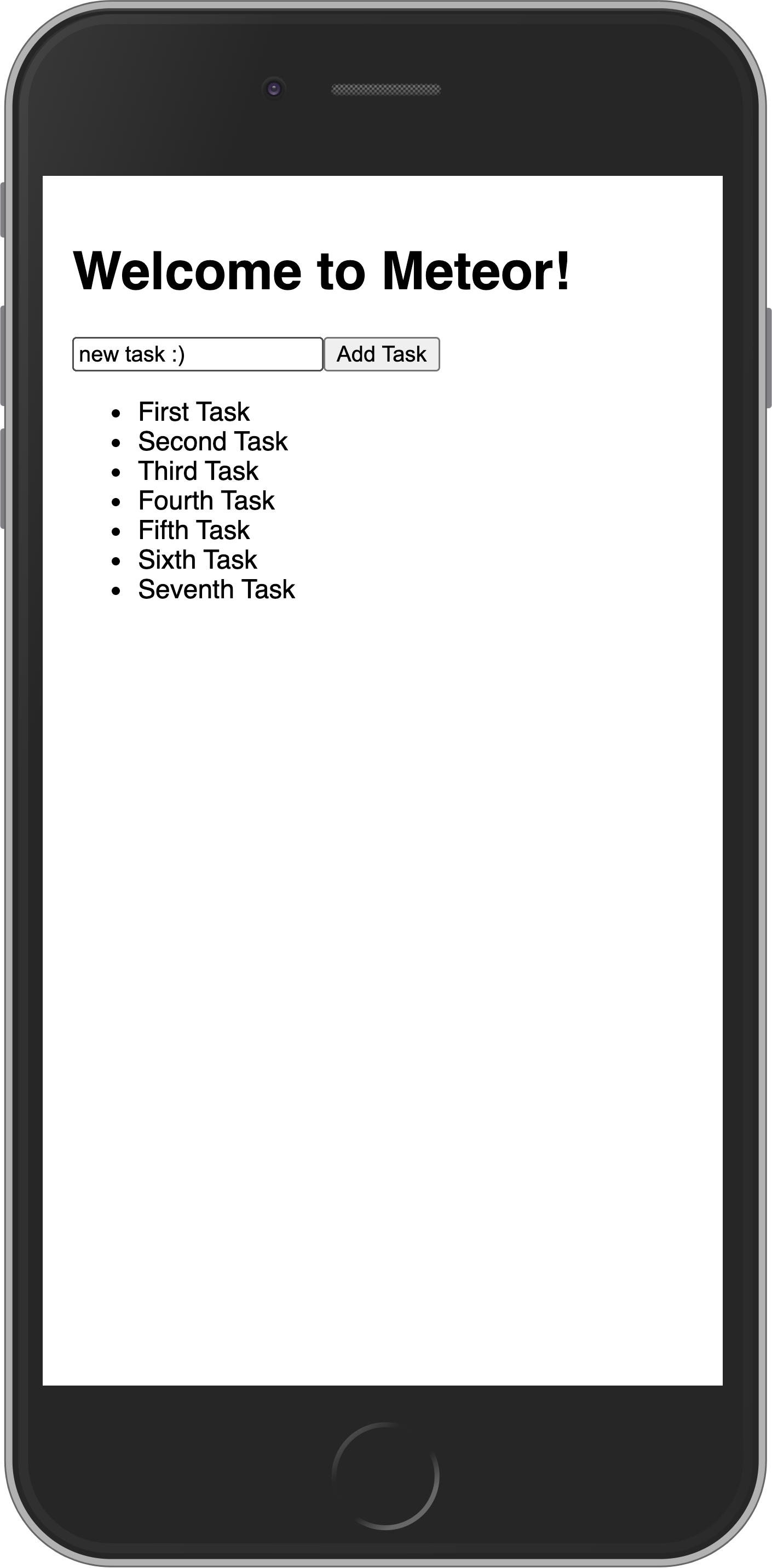
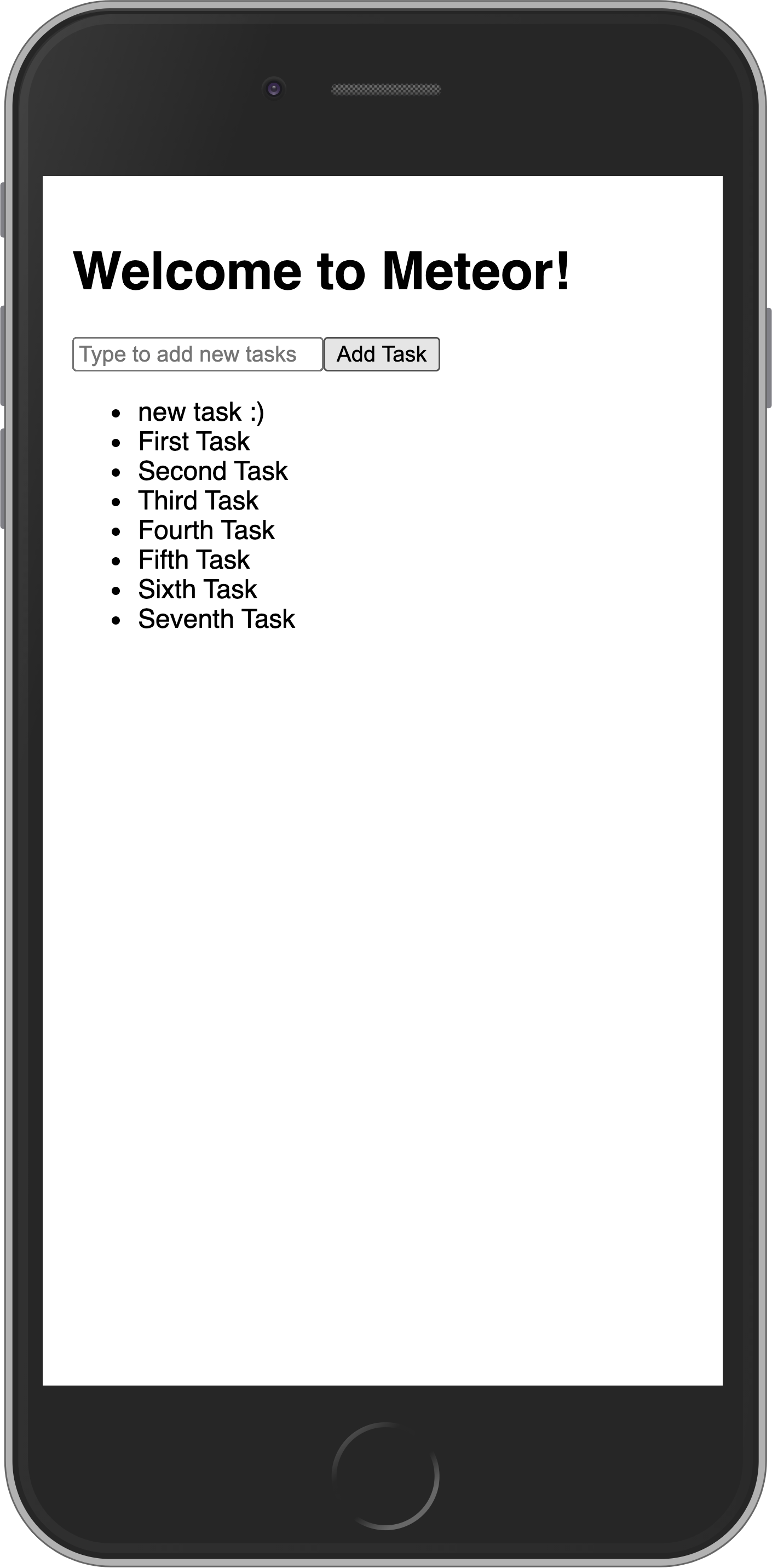
现在,你只需要进行一些让用户满意的更改:我们需要先显示最新任务。我们可以通过对 Mongo 查询进行排序来快速完成此操作。
¥Now you just need to make a change that will make users happy: we need to show the newest tasks first. We can accomplish this quite quickly by sorting our Mongo query.
js
...

Template.mainContainer.helpers({
  tasks() {
    return TasksCollection.find({}, { sort: { createdAt: -1 } });
  },
});

...
你的应用应如下所示:
¥Your app should look like this:
在下一步中,我们将更新你的任务状态并为用户提供一种删除任务的方法。
¥In the next step, we are going to update your tasks state and provide a way for users to remove tasks.
4:更新和删除
¥4: Update and Remove
到目前为止,你只将文档插入到我们的集合中。让我们看看如何通过与用户界面交互来更新和删除它们。
¥Up until now, you have only inserted documents into our collection. Let's take a look at how you can update and remove them by interacting with the user interface.
4.1:添加复选框
¥4.1: Add Checkbox
首先,你需要向你的 Task 组件添加一个 checkbox 元素。
¥First, you need to add a checkbox element to your Task component.
接下来,让我们在 imports/ui/Task.html 中为 task 模板创建一个新文件,以便开始分离应用中的逻辑。
¥Next, let’s create a new file for our task template in imports/ui/Task.html, so we can start to separate the logic in our app.
html
<template name="task">
    <li>
        <label>
          <input type="checkbox" checked="{{isChecked}}" class="toggle-checked" />
          <span>{{text}}</span>
        </label>
    </li>
</template>
不要忘记在 imports/ui/App.html 中移除名为 task 的模板。
¥Don’t forget to remove the template named task in imports/ui/App.html.
你还必须添加以下导入语句:
¥You must also add the following import:
js
...
import './Task';
...
4.2:切换复选框
¥4.2: Toggle Checkbox
现在,你可以通过切换其 isChecked 字段来更新你的任务文档。
¥Now you can update your task document by toggling its isChecked field.
首先,创建一个名为 tasks.toggleChecked 的新方法来更新 isChecked 属性。
¥First, create a new method called tasks.toggleChecked to update the isChecked property.
js
import { Meteor } from "meteor/meteor";
import { TasksCollection } from "./TasksCollection";

Meteor.methods({
  ..
  "tasks.toggleChecked"({ _id, isChecked }) {
    return TasksCollection.updateAsync(_id, {
      $set: { isChecked: !isChecked },
    });
  },
});
创建一个名为 Task.js 的新文件,以便我们能够处理 task 模板:
¥Create a new file called Task.js so we can have our handlers to the task template:
js
import { Template } from 'meteor/templating';
import { TasksCollection } from "../api/TasksCollection";
import '/imports/api/TasksMethods.js'; // this import in this client UI allows for optimistic execution
import './Task.html';


Template.task.events({
  'click .toggle-checked'() {
    // Set the checked property to the opposite of its current value
    let taskID = this._id;
    let checkedValue = Boolean(this.isChecked);
    Meteor.callAsync("tasks.toggleChecked", { _id: taskID, isChecked: checkedValue });
  },
});
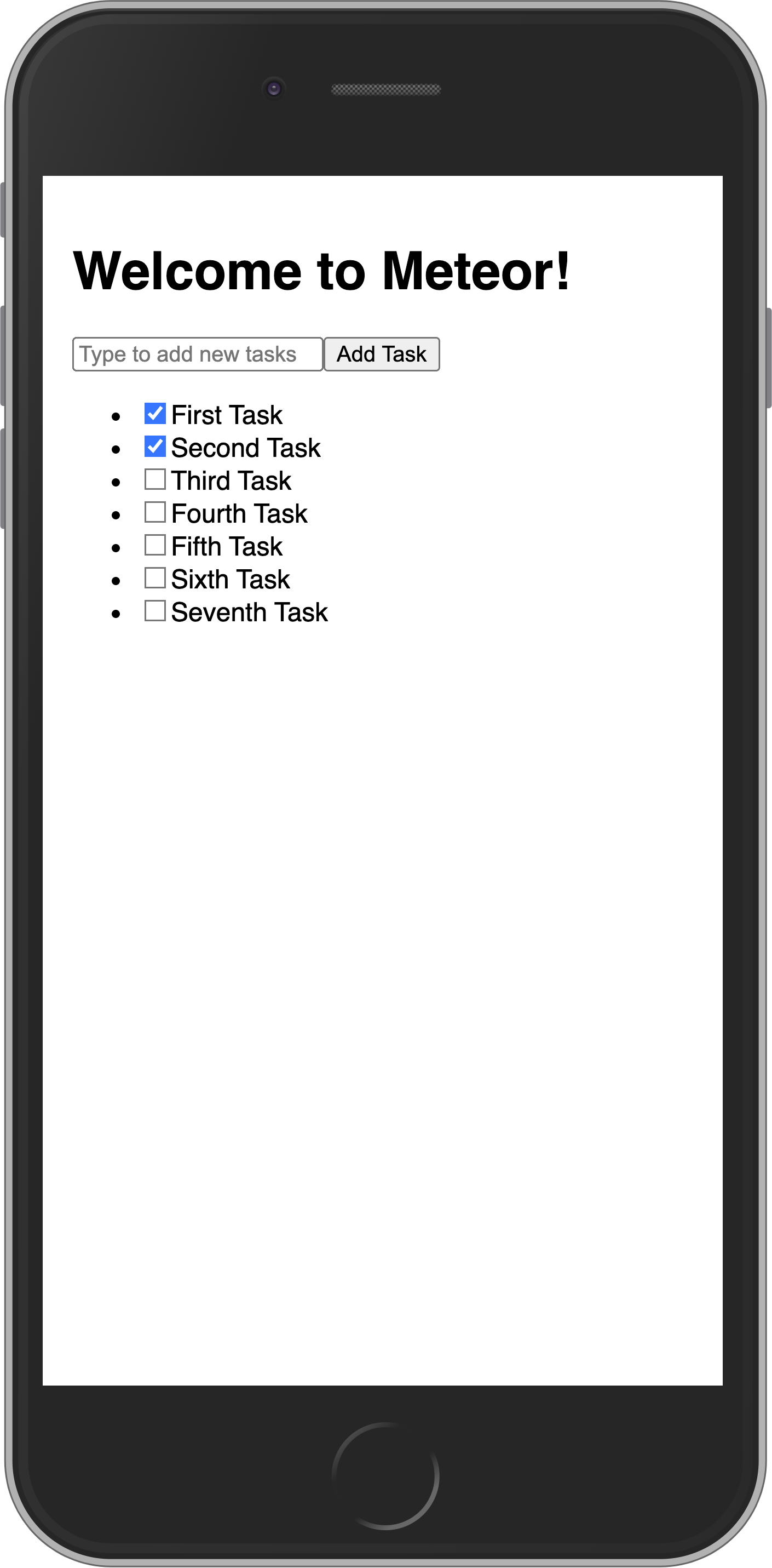
即使刷新 Web 浏览器,复选框的切换状态现在也应该会保留在数据库中。
¥Toggling checkboxes should now persist in the DB even if you refresh the web browser.
你的应用应如下所示:
¥Your app should look like this:
如果你的计算机速度足够快,在设置默认任务时,可能会出现部分任务日期相同的情况。当你切换复选框时,UI 会响应式更新,导致它们在 UI 中以不确定的方式显示为 "跳转"。为了使其稳定,你可以为任务的 _id 添加二级排序:
¥If your computer is fast enough, it's possible that when it sets up the default tasks a few will have the same date. That will cause them to non-deterministically "jump around" in the UI as you toggle checkboxes and the UI reactively updates. To make it stable, you can add a secondary sort on the _id of the task:
js
...

Template.mainContainer.helpers({
  tasks() {
    return TasksCollection.find({}, { sort: { createdAt: -1, _id: -1 } });
  },
...
4.3:删除任务
¥4.3: Remove tasks
你只需几行代码即可删除任务。
¥You can remove tasks with just a few lines of code.
首先,在 Task 组件的文本 label 后添加一个按钮。
¥First, add a button after text label in your Task component.
html
<template name="task">
<li>
<label>
<input type="checkbox" checked="{{isChecked}}" class="toggle-checked" />
<span>{{text}}</span>
</label>
<button class="delete">×</button>
</li>
...接下来,你需要一个用于删除任务的函数。为此,让我们创建一个名为 tasks.delete 的新方法:
¥Next you need to have a function to delete the task. For that, let's create a new method called tasks.delete:
js
import { Meteor } from "meteor/meteor";
import { TasksCollection } from "./TasksCollection";

Meteor.methods({
  ..
  "tasks.delete"({ _id }) {
    return TasksCollection.removeAsync(_id);
  },
});
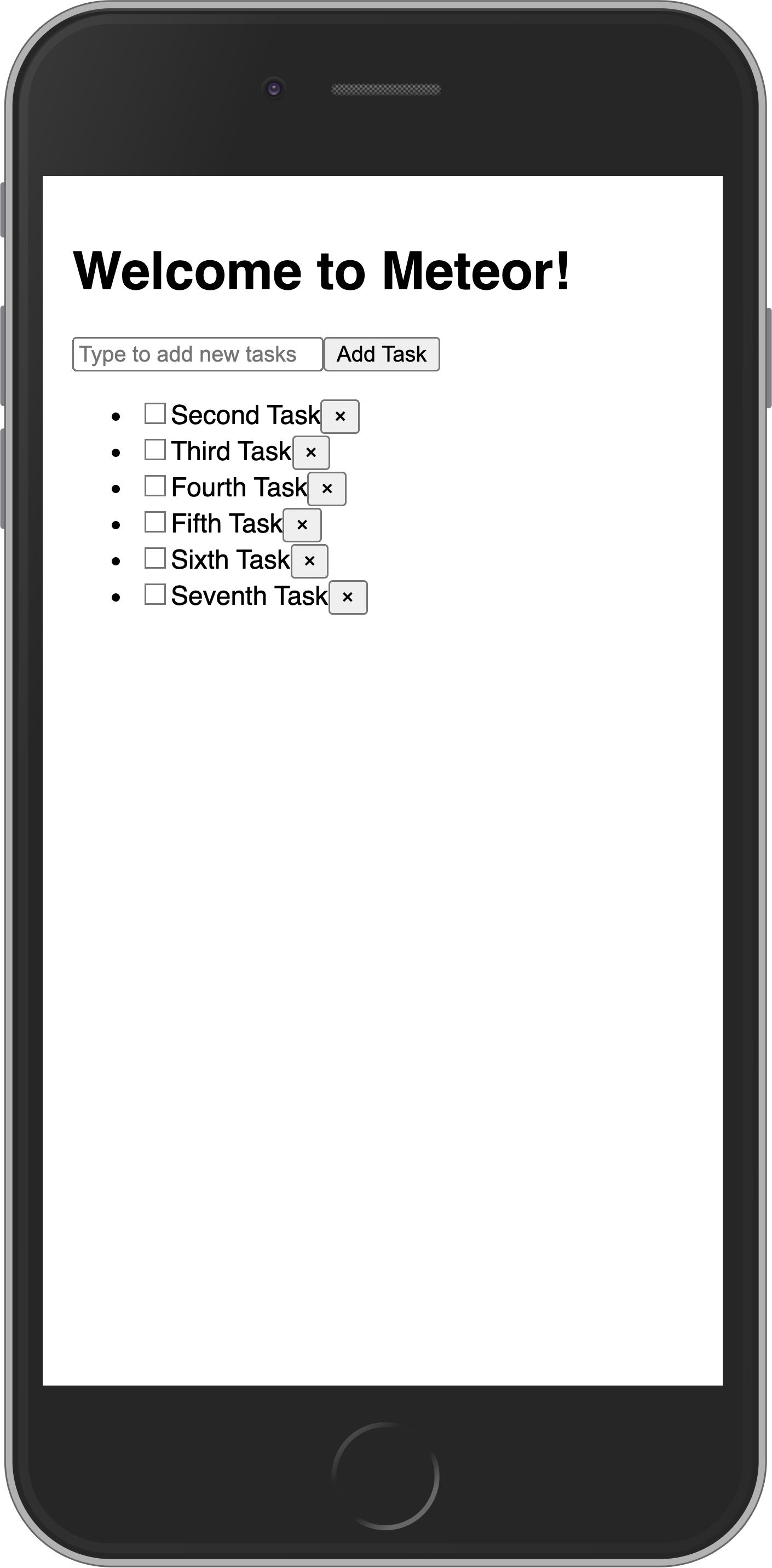
现在在 Task.js 中添加删除逻辑。它会在 task 模板中添加一个新事件,当用户点击删除按钮(即任何带有 delete 类的按钮)时激活:
¥Now add the removal logic in the Task.js. It will just be a new event to the task template that is activated when the user clicks on a delete button (i.e. any button with the class delete):
javascript
...

Template.task.events({
  ...,
  'click .delete'() {
    let taskID = this._id;
    Meteor.callAsync("tasks.delete", { _id: taskID });
  },
});
你的应用应如下所示:
¥Your app should look like this:
4.4:在事件处理程序中获取数据
¥4.4: Getting data in event handlers
在集合中,每个插入的文档都有一个唯一的 _id 字段,该字段可以引用该特定文档。在事件处理程序中,this 指的是单个任务对象。我们可以使用 this._id 和客户端可用的任何其他字段来获取当前任务的 _id。获取 _id 后,我们可以使用、更新和删除相关任务。这就是我们的代码更新或删除任务的方式。
¥In a collection, every inserted document has a unique _id field that can refer to that specific document. Inside the event handlers, this refers to an individual task object. We can get the _id of the current task with this._id and any other field available on the client-side. Once we have the _id, we can use, update, and remove the relevant task. That’s how our code will update or remove a task.
在下一步中,我们将使用带有 Flexbox 的 CSS 改善应用的外观。
¥In the next step, we are going to improve the look of your app using CSS with Flexbox.
5:样式
¥5: Styles
5.1:CSS
到目前为止,我们的用户界面看起来相当丑陋。让我们添加一些基本样式,作为更专业的应用的基础。
¥Our user interface up until this point has looked quite ugly. Let's add some basic styling which will serve as the foundation for a more professional looking app.
用下面的内容替换我们的 client/main.css 文件的内容,想法是在顶部有一个应用栏,以及一个可滚动的内容,包括:
¥Replace the content of our client/main.css file with the one below, the idea is to have an app bar at the top, and a scrollable content including:
添加新任务的表单;
¥form to add new tasks;
任务列表。
¥list of tasks.
css
body {
  font-family: sans-serif;
  background-color: #315481;
  background-image: linear-gradient(to bottom, #315481, #918e82 100%);
  background-attachment: fixed;

  position: absolute;
  top: 0;
  bottom: 0;
  left: 0;
  right: 0;

  padding: 0;
  margin: 0;

  font-size: 14px;
}

button {
  font-weight: bold;
  font-size: 1em;
  border: none;
  color: white;
  box-shadow: 0 3px 3px rgba(34, 25, 25, 0.4);
  padding: 5px;
  cursor: pointer;
}

button:focus {
  outline: 0;
}

.app {
  display: flex;
  flex-direction: column;
  height: 100vh;
}

.app-header {
  flex-grow: 1;
  white-space: nowrap;
  overflow: hidden;
  text-overflow: ellipsis;
}

.main {
  display: flex;
  flex-direction: column;
  flex-grow: 1;
  overflow: auto;
  background: white;
}

.main::-webkit-scrollbar {
  width: 0;
  height: 0;
  background: inherit;
}

header {
  background: #d2edf4;
  background-image: linear-gradient(to bottom, #d0edf5, #e1e5f0 100%);
  padding: 20px 15px 15px 15px;
  position: relative;
  box-shadow: 0 3px 3px rgba(34, 25, 25, 0.4);
}

.app-bar {
  display: flex;
  justify-content: space-between;
}

.app-bar h1 {
  font-size: 1.5em;
  margin: 0;
  display: inline-block;
  margin-right: 1em;
}

.task-form {
  display: flex;
  margin: 16px;
}

.task-form > input {
  flex-grow: 1;
  box-sizing: border-box;
  padding: 10px 6px;
  background: transparent;
  border: 1px solid #aaa;
  width: 100%;
  font-size: 1em;
  margin-right: 16px;
}

.task-form > input:focus {
  outline: 0;
}

.task-form > button {
  min-width: 100px;
  height: 95%;
  background-color: #315481;
}

.tasks {
  list-style-type: none;
  padding-inline-start: 0;
  padding-left: 16px;
  padding-right: 16px;
  margin-block-start: 0;
  margin-block-end: 0;
}

.tasks > li {
  display: flex;
  padding: 16px;
  border-bottom: #eee solid 1px;
  align-items: center;
}

.tasks > li > label {
  flex-grow: 1;
}

.tasks > li > button {
  justify-self: flex-end;
  background-color: #ff3046;
}
如果你想了解有关此样式表的更多信息,请查看有关 Flexbox 的这篇文章,以及来自 Wes Bos 的关于它的免费 视频教程。
¥If you want to learn more about this stylesheet check this article about Flexbox, and also this free video tutorial about it from Wes Bos.
Flexbox 是分发和对齐 UI 中元素的绝佳工具。
¥Flexbox is an excellent tool to distribute and align elements in your UI.
5.2:应用样式
¥5.2: Applying styles
现在,你需要在组件周围添加一些元素。你将在 App 中的主 div 中添加一个 class,在 h1 周围添加一个 header 元素和一些 divs,在表单和列表周围添加一个主 div。检查下面应该如何,注意类的名称,它们需要与 CSS 文件中的名称相同:
¥Now you need to add some elements around your components. You are going to add a class to your main div in the App, also a header element with a few divs around your h1, and a main div around your form and list. Check below how it should be, pay attention to the name of the classes, they need to be the same as in the CSS file:
html
...
<template name="mainContainer">
    <div class="app">
        <header>
            <div class="app-bar">
                <div class="app-header">
                    <h1>📝️ Todo List</h1>
                </div>
            </div>
        </header>

        <div class="main">
            {{> form }}

            <ul class="tasks">
                {{#each tasks}}
                    {{> task}}
                {{/each}}
            </ul>
        </div>
    </div>
</template>
...
你的应用应如下所示:
¥Your app should look like this:
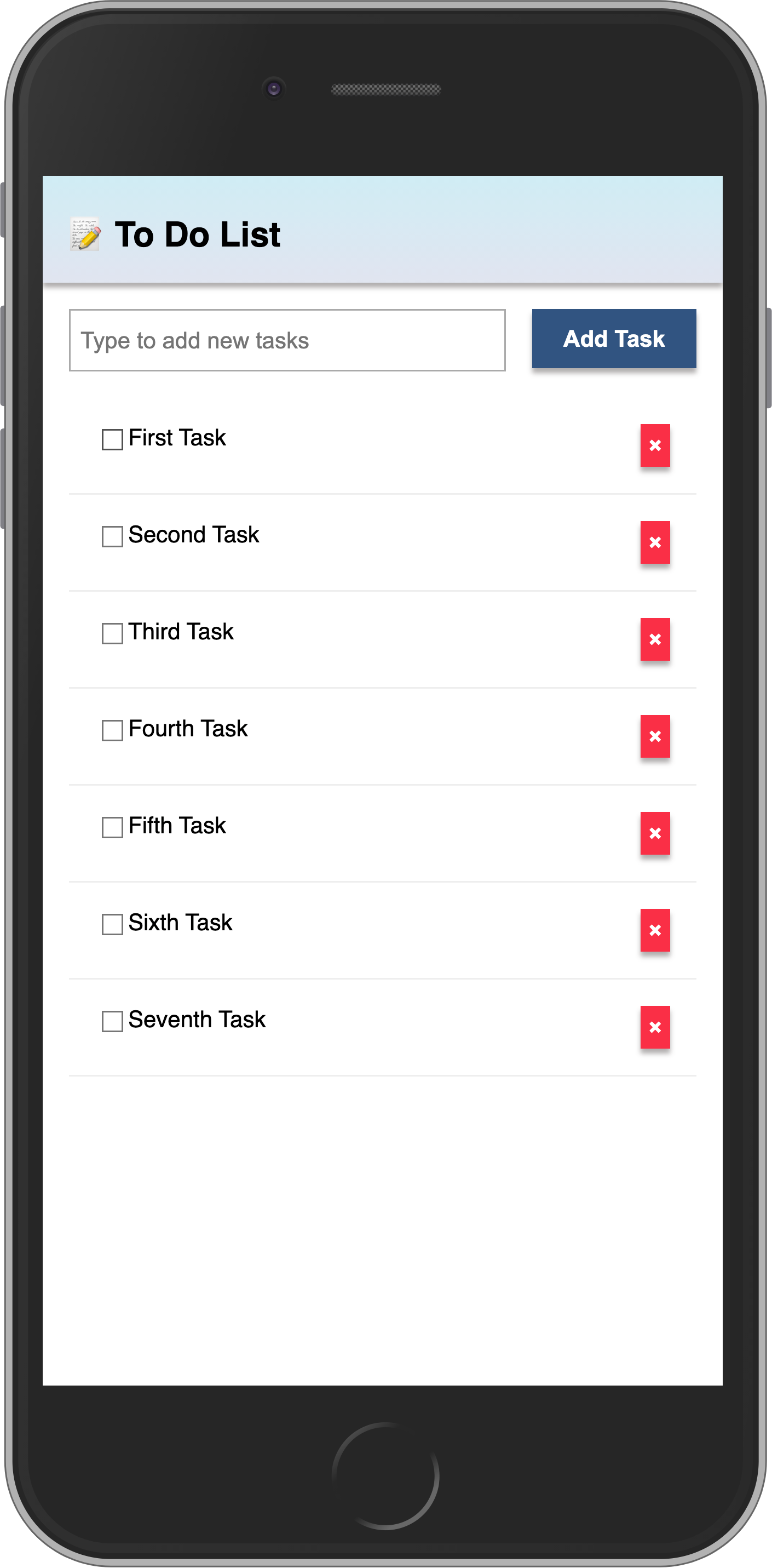
在下一步中,我们将使此任务列表更具交互性,例如,提供一种过滤任务的方法。
¥In the next step, we are going to make this task list more interactive, for example, providing a way to filter tasks.
6:过滤任务
¥6: Filter tasks
在此步骤中,你将按状态过滤任务并显示待处理任务的数量。
¥In this step, you will filter your tasks by status and show the number of pending tasks.
6.1:ReactiveDict
首先,你将添加一个按钮,用于显示或隐藏列表中已完成的任务。
¥First, you will add a button to show or hide the completed tasks from the list.
为了维护状态,我们将使用 ReactiveDict,这是一个响应式字典,它允许我们存储任意键值对集合。使用它来管理组件的内部状态,例如列表中当前选中的项目。要了解更多关于 ReactiveDict 工作原理的信息,你可以点击此链接 link,在那里你可以找到你需要了解的所有信息以及它的所有功能。
¥To keep the state, we will use the ReactiveDict, a reactive dictionary which enables us to store an arbitrary set of key-value pairs. Use it to manage the internal state in your components, i.e. the currently selected item in a list. To know more about how ReactiveDict works, you can click on this link, and there you will find everything you need to know and everything you can do with it.
我们需要在应用中安装 reactive-dict 包。只需在你的应用根目录上运行以下命令:
¥We need to install the reactive-dict package in our app. Simply run the command below on your app root directory:
shell
meteor add reactive-dict接下来,我们需要设置一个新的 ReactiveDict,并在首次创建时将其附加到 mainContainer 模板实例(因为我们将在此处存储按钮的状态)。创建变量的最佳位置是在要持久化数据的模板的 onCreated 回调函数中。此回调会在模板渲染到屏幕后立即调用:
¥Next, we need to set up a new ReactiveDict and attach it to the mainContainer template instance (as this is where we’ll store the button’s state) when it is first created. The best place to create our variables is inside the callback onCreated of the template that we want to persist our data. This callback is called as soon as the template renders on the screen:
js
import { Template } from 'meteor/templating';
import { ReactiveDict } from 'meteor/reactive-dict';
import { TasksCollection } from "../api/TasksCollection";
import '/imports/api/TasksMethods.js'; // this import in this client UI allows for optimistic execution
import './App.html';
import './Task';

Template.mainContainer.onCreated(function mainContainerOnCreated() {
  this.state = new ReactiveDict();

  Meteor.subscribe('tasks');
});
...
然后,我们需要一个事件处理程序,以便在单击按钮时更新 ReactiveDict 变量。事件处理程序接受两个参数,第二个参数是 onCreated 回调中的同一个模板实例。另外,在导入语句下方创建一个名为 HIDE_COMPLETED_STRING 的新常量,它将在整个代码中用作我们要持久化的变量名:
¥Then, we need an event handler to update the ReactiveDict variable when the button is clicked. An event handler takes two arguments, the second of which is the same template instance in the onCreated callback. Also, create a new constant called HIDE_COMPLETED_STRING below the imports, that will be used throughout the code as the name of the variable we are persisting:
js
...

const HIDE_COMPLETED_STRING = "hideCompleted";

...

Template.mainContainer.events({
  "click #hide-completed-button"(event, instance) {
    const currentHideCompleted = instance.state.get(HIDE_COMPLETED_STRING);
    instance.state.set(HIDE_COMPLETED_STRING, !currentHideCompleted);
  }
});

...
用于切换状态的 UI 按钮如下所示:
¥The button in the UI to toggle our state will look something like this:
html
...

<div class="main">
    {{> form }}

    <div class="filter">
        <button id="hide-completed-button">


{{#if hideCompleted}}
                    Show All
            {{else}}
                    Hide Completed
            {{/if}}


        </button>
    </div>

    <ul class="tasks">
        {{#each tasks}}
            {{> task}}
        {{/each}}
    </ul>
</div>

...
你可能注意到我们第一次使用了 if(一个条件测试),它非常简单易用。你可以了解更多关于条件测试 if 和 此处 的信息。我们还使用了一个名为 hideCompleted 的辅助函数,该函数尚未创建,但很快就会创建。
¥You may notice we’re using if (a conditional test) for the first time, and it’s pretty straightforward. You can learn more about the conditional test, if, here. We’re also using a helper called hideCompleted that we didn’t create yet, but we will shortly.
6.2:按钮样式
¥6.2: Button style
你应该为按钮添加一些样式,使其看起来不会是灰色的并且没有很好的对比度。你可以使用以下样式作为参考:
¥You should add some style to your button so it does not look gray and without a good contrast. You can use the styles below as a reference:
css
.filter {
  display: flex;
  justify-content: center;
}

.filter > button {
  background-color: #62807e;
}
6.3:过滤任务
¥6.3: Filter Tasks
现在,我们需要更新 Template.mainContainer.helpers。以下代码验证变量 hideCompleted 是否设置为 true,如果是,则过滤查询以获取未完成的任务。我们还有一个名为 hideCompleted 的新辅助组件,它可以帮助我们在 UI 中判断是否正在进行筛选:
¥Now, we need to update Template.mainContainer.helpers. The code below verifies if the variable hideCompleted is set to true and if yes, we filter our query to get non completed tasks. We also have a new helper called hideCompleted that will help us in the UI where we want to know if we’re filtering or not:
js
...

Template.mainContainer.helpers({
  tasks() {
    const instance = Template.instance();
    const hideCompleted = instance.state.get(HIDE_COMPLETED_STRING);

    const hideCompletedFilter = { isChecked: { $ne: true } };

    return TasksCollection.find(hideCompleted ? hideCompletedFilter : {}, {
      sort: { createdAt: -1, _id: -1 },
    }).fetch();
  },
  hideCompleted() {
    return Template.instance().state.get(HIDE_COMPLETED_STRING);
  },
});

...
6.4:Meteor Dev Tools 扩展
¥6.4: Meteor Dev Tools Extension
你可以安装扩展程序以可视化 Mini Mongo 中的数据。
¥You can install an extension to visualize the data in your Mini Mongo.
Meteor DevTools Evolved 将帮助你调试应用,因为你可以看到 Mini Mongo 上有什么数据。
¥Meteor DevTools Evolved will help you to debug your app as you can see what data is on Mini Mongo.
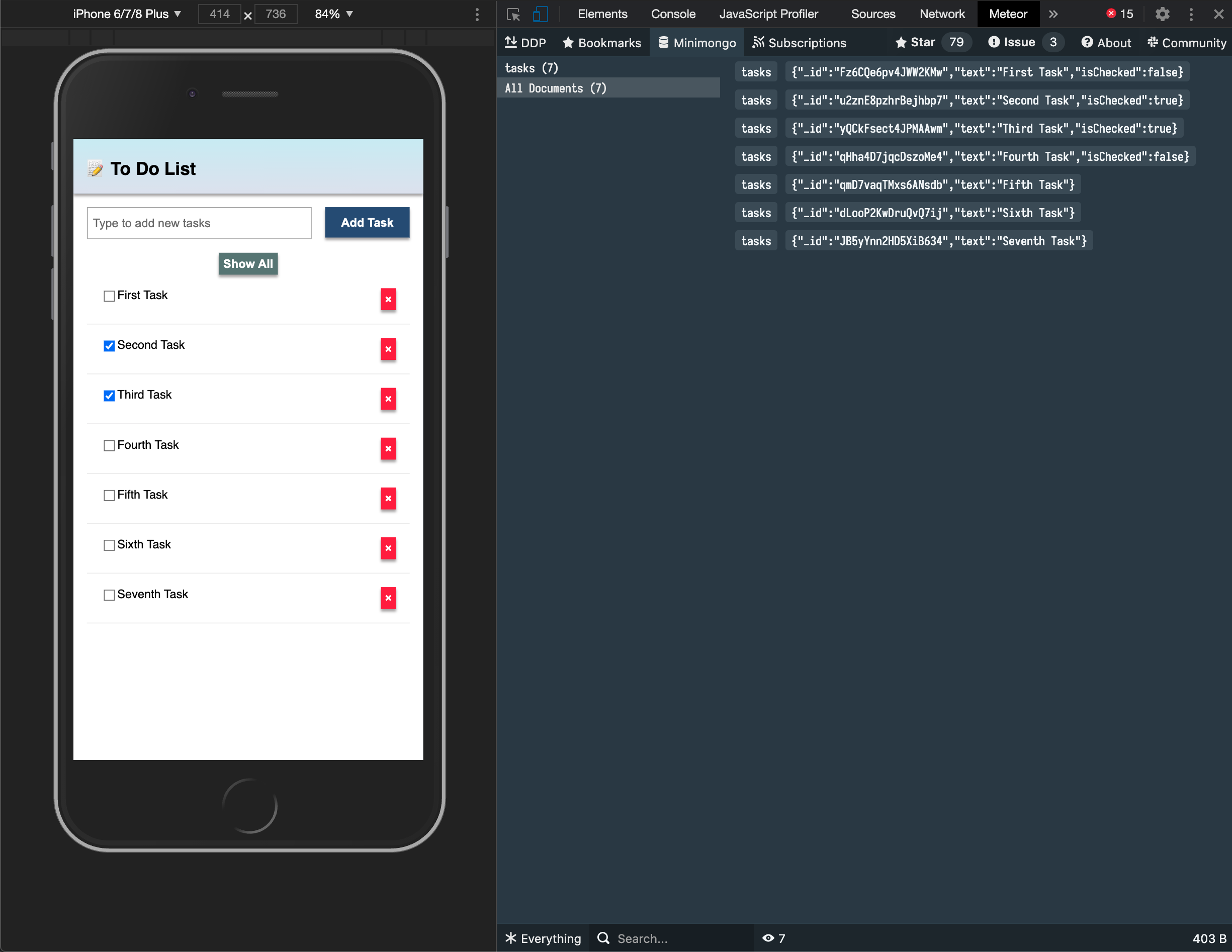
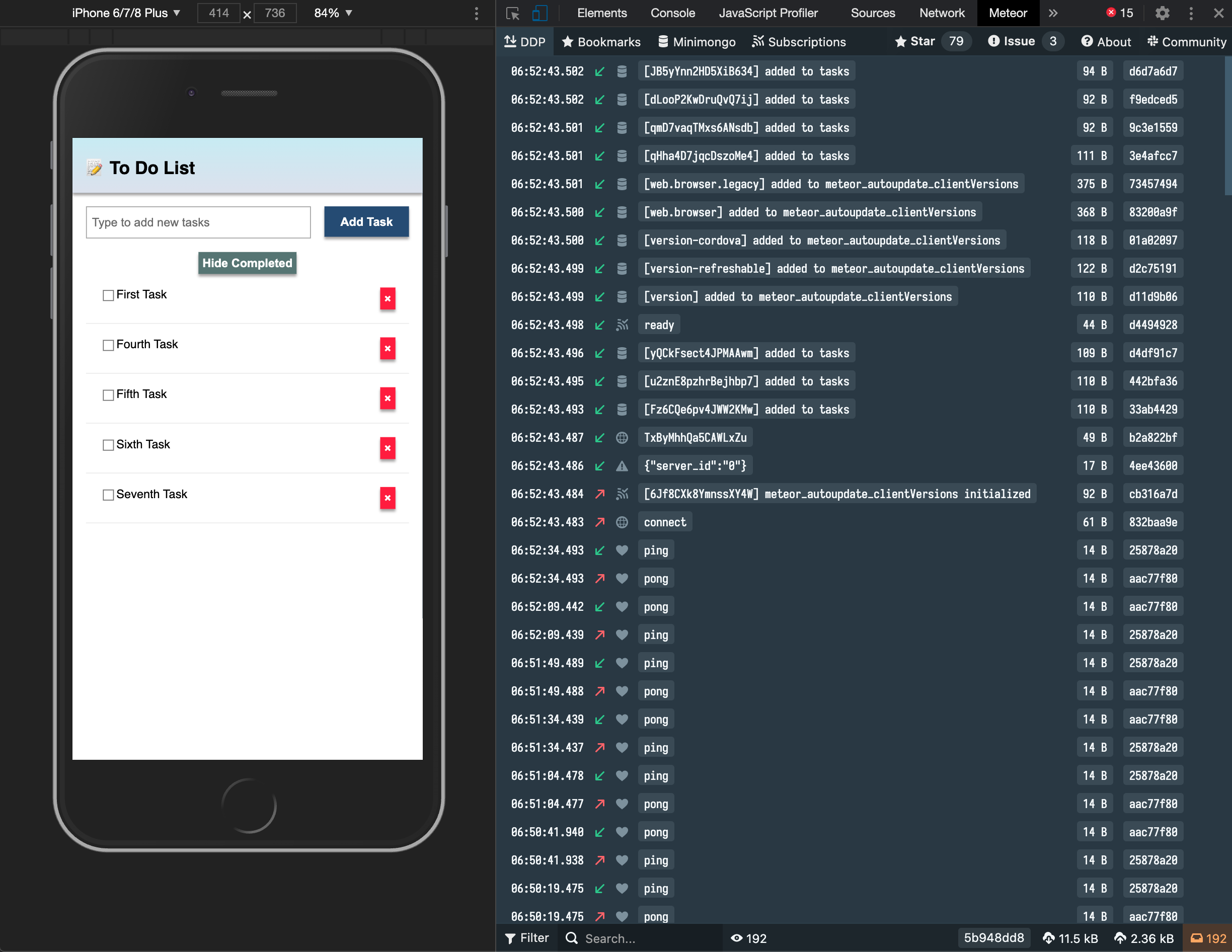
你还可以查看 Meteor 从服务器发送和接收的所有消息,这对你了解 Meteor 的工作原理很有用。
¥You can also see all the messages that Meteor is sending and receiving from the server, this is useful for you to learn more about how Meteor works.
使用此 link 将其安装在你的 Google Chrome 浏览器中。
¥Install it in your Google Chrome browser using this link.
6.5:待处理任务
¥6.5: Pending tasks
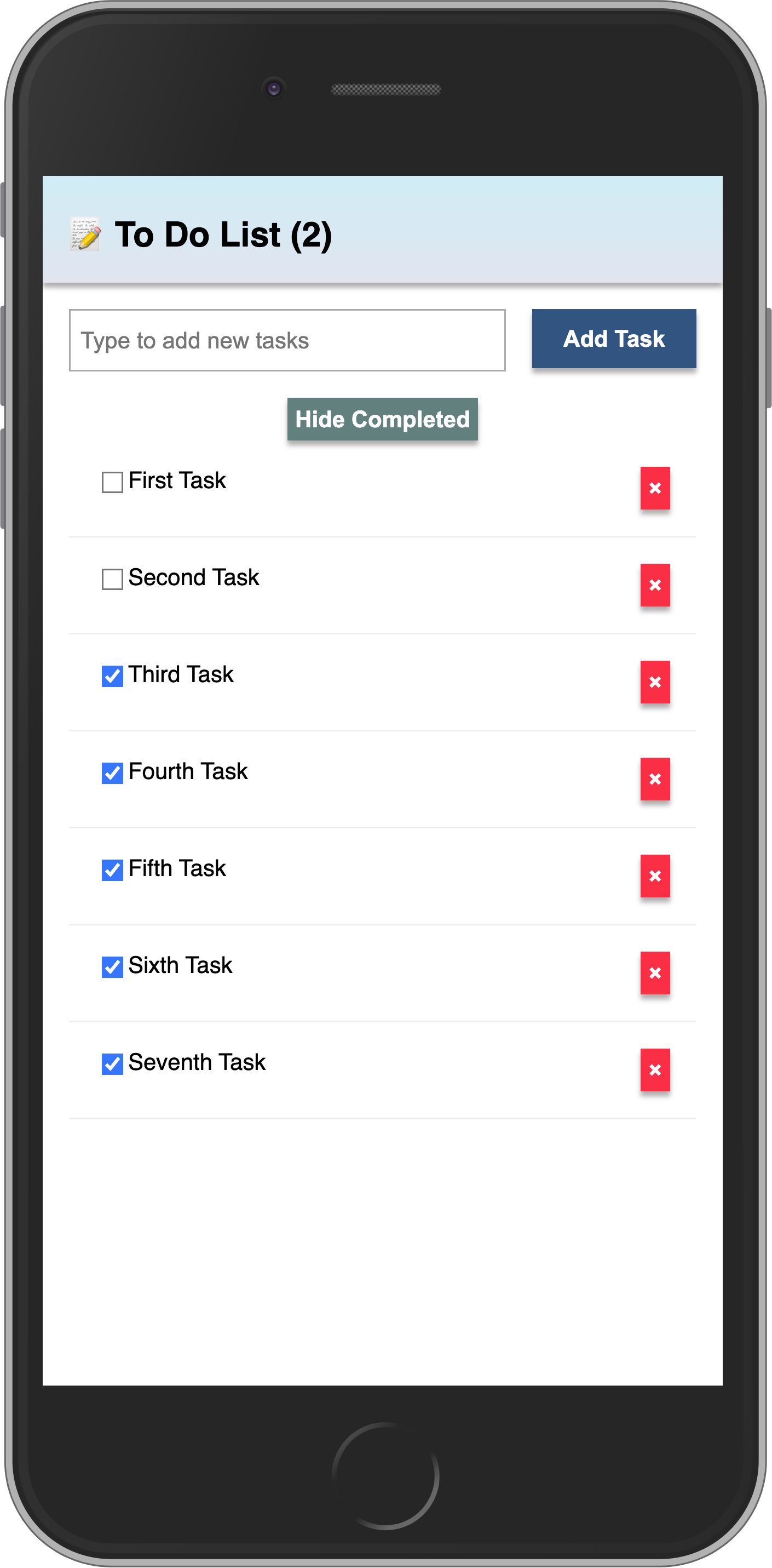
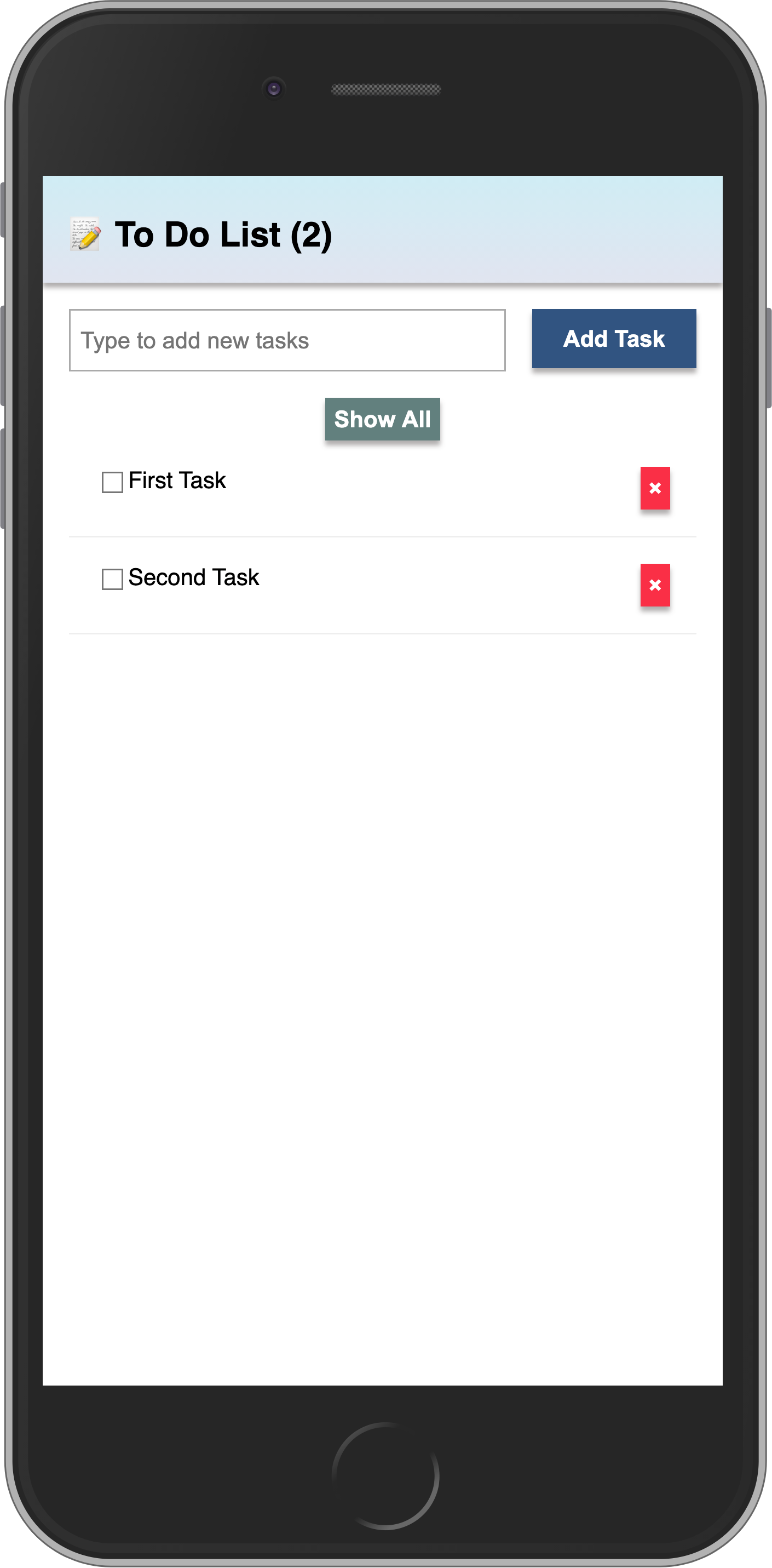
更新 App 组件以显示应用栏中待处理任务的数量。
¥Update the App component in order to show the number of pending tasks in the app bar.
当没有待处理任务时,你应该避免在应用栏中添加零。
¥You should avoid adding zero to your app bar when there are no pending tasks.
js
...

Template.mainContainer.helpers({
  ...,
  incompleteCount() {
    const incompleteTasksCount = TasksCollection.find({ isChecked: { $ne: true } }).count();
    return incompleteTasksCount ? `(${incompleteTasksCount})` : '';
  },
});

...html
...

<template name="mainContainer">
    <div class="app">
        <header>
            <div class="app-bar">
                <div class="app-header">
                    <h1>📝️ To Do List {{incompleteCount}}</h1>
                </div>
            </div>
        </header>

...
你的应用应如下所示:
¥Your app should look like this:
下一步,我们将在你的应用中包含用户访问权限。
¥In the next step we are going to include user access in your app.
7:添加用户账户
¥7: Adding User Accounts
7.1:密码身份验证
¥7.1: Password Authentication
Meteor 已经自带了一个基本的开箱即用的身份验证和账户管理系统,因此你只需添加 accounts-password 即可启用用户名和密码身份验证:
¥Meteor already comes with a basic authentication and account management system out of the box, so you only need to add the accounts-password to enable username and password authentication:
shell
meteor add accounts-password支持更多身份验证方法。你可以阅读有关账户系统 此处 的更多信息。
¥There are many more authentication methods supported. You can read more about the accounts system here.
我们还建议你安装 bcrypt Node 模块,否则你将看到一条警告,提示你正在使用它的纯 Javascript 实现。
¥We also recommend you to install bcrypt node module, otherwise, you are going to see a warning saying that you are using a pure-Javascript implementation of it.
shell
meteor npm install --save bcrypt你应该始终使用
meteor npm而不是仅使用npm,因此你始终使用 Meteor 固定的npm版本,这有助于你避免由于不同版本的 npm 安装不同的模块而导致的问题。¥You should always use
meteor npminstead of onlynpmso you always use thenpmversion pinned by Meteor, this helps you to avoid problems due to different versions of npm installing different modules.
7.2:创建用户账户
¥7.2: Create User Account
现在你可以为我们的应用创建一个默认用户,我们将使用 meteorite 作为用户名,如果我们在数据库中找不到它,我们只需在服务器启动时创建一个新用户。
¥Now you can create a default user for our app, we are going to use meteorite as username, we just create a new user on server startup if we didn't find it in the database.
js
import { Meteor } from 'meteor/meteor';
import { Accounts } from 'meteor/accounts-base';
import { TasksCollection } from '/imports/api/TasksCollection';
import "../imports/api/TasksMethods";

const SEED_USERNAME = 'meteorite';
const SEED_PASSWORD = 'password';

Meteor.startup(async () => {
  if (!(await Accounts.findUserByUsername(SEED_USERNAME))) {
    await Accounts.createUser({
      username: SEED_USERNAME,
      password: SEED_PASSWORD,
    });
  }

  ...
});
你目前不应该在应用 UI 中看到任何不同。
¥You should not see anything different in your app UI yet.
7.3:登录表单
¥7.3: Login Form
你需要为用户提供一种输入凭据和身份验证的方式,为此我们需要一个表单。
¥You need to provide a way for the users to input the credentials and authenticate, for that we need a form.
我们的登录表单将很简单,只有两个字段(用户名和密码)和一个按钮。你应该使用 Meteor.loginWithPassword(username, password);使用提供的输入对用户进行身份验证。
¥Our login form will be simple, with just two fields (username and password) and a button. You should use Meteor.loginWithPassword(username, password); to authenticate your user with the provided inputs.
html
<template name="login">
    <form class="login-form">
        <div>
            <label htmlFor="username">Username</label>

            <input
                    type="text"
                    placeholder="Username"
                    name="username"
                    required
            />
        </div>

        <div>
            <label htmlFor="password">Password</label>

            <input
                    type="password"
                    placeholder="Password"
                    name="password"
                    required
            />
        </div>
        <div>
            <button type="submit">Log In</button>
        </div>
    </form>
</template>js
import { Meteor } from 'meteor/meteor';
import { Template } from 'meteor/templating';
import './Login.html';

Template.login.events({
  'submit .login-form'(e) {
    e.preventDefault();

    const target = e.target;

    const username = target.username.value;
    const password = target.password.value;

    Meteor.loginWithPassword(username, password);
  }
});
请务必在 App.js 中导入登录表单。
¥Be sure also to import the login form in App.js.
js
import { Template } from 'meteor/templating';
import { ReactiveDict } from 'meteor/reactive-dict';
import { TasksCollection } from "../api/TasksCollection";
import '/imports/api/TasksMethods.js'; // this import in this client UI allows for optimistic execution
import './App.html';
import './Task';
import "./Login.js";

...
好的,现在你有了一个表单,让我们使用它。
¥Ok, now you have a form, let's use it.
7.4:需要身份验证
¥7.4: Require Authentication
我们的应用应该只允许经过身份验证的用户访问其任务管理功能。
¥Our app should only allow an authenticated user to access its task management features.
我们可以通过在未登录用户时从模板渲染 Login 组件来实现这一点。否则,我们将返回表单、筛选器和列表组件。
¥We can accomplish that by rendering the Login from the template when we don’t have an authenticated user. Otherwise, we return the form, filter, and list component.
为了实现这一点,我们将在主 div 中使用条件语句测试 App.html:
¥To achieve this, we will use a conditional test inside our main div on App.html:
html
...
        <div class="main">


{{#if isUserLoggedIn}}

                {{> form }}

                <div class="filter">
                    <button id="hide-completed-button">
                        {{#if hideCompleted}}
                                Show All
                        {{else}}
                                Hide Completed
                        {{/if}}


                    </button>
                </div>

                <ul class="tasks">
                    {{#each tasks}}
                        {{> task}}
                    {{/each}}
                </ul>
            {{else}}
                {{> login }}
            {{/if}}
        </div>
...如你所见,如果用户已登录,我们会渲染整个应用(isUserLoggedIn)。否则,我们将渲染登录模板。现在,我们创建辅助函数 isUserLoggedIn:
¥As you can see, if the user is logged in, we render the whole app (isUserLoggedIn). Otherwise, we render the Login template. Let’s now create our helper isUserLoggedIn:
js
...

const getUser = () => Meteor.user();
const isUserLoggedInChecker = () => Boolean(getUser());
...

Template.mainContainer.helpers({
  ...,
  isUserLoggedIn() {
    return isUserLoggedInChecker();
  },
});
...
7.5:登录表单样式
¥7.5: Login Form style
好的,现在让我们设置登录表单的样式:
¥Ok, let's style the login form now:
css
.login-form {
  display: flex;
  flex-direction: column;
  height: 100%;

  justify-content: center;
  align-items: center;
}

.login-form > div {
  margin: 8px;
}

.login-form > div > label {
  font-weight: bold;
}

.login-form > div > input {
  flex-grow: 1;
  box-sizing: border-box;
  padding: 10px 6px;
  background: transparent;
  border: 1px solid #aaa;
  width: 100%;
  font-size: 1em;
  margin-right: 16px;
  margin-top: 4px;
}

.login-form > div > input:focus {
  outline: 0;
}

.login-form > div > button {
  background-color: #62807e;
}
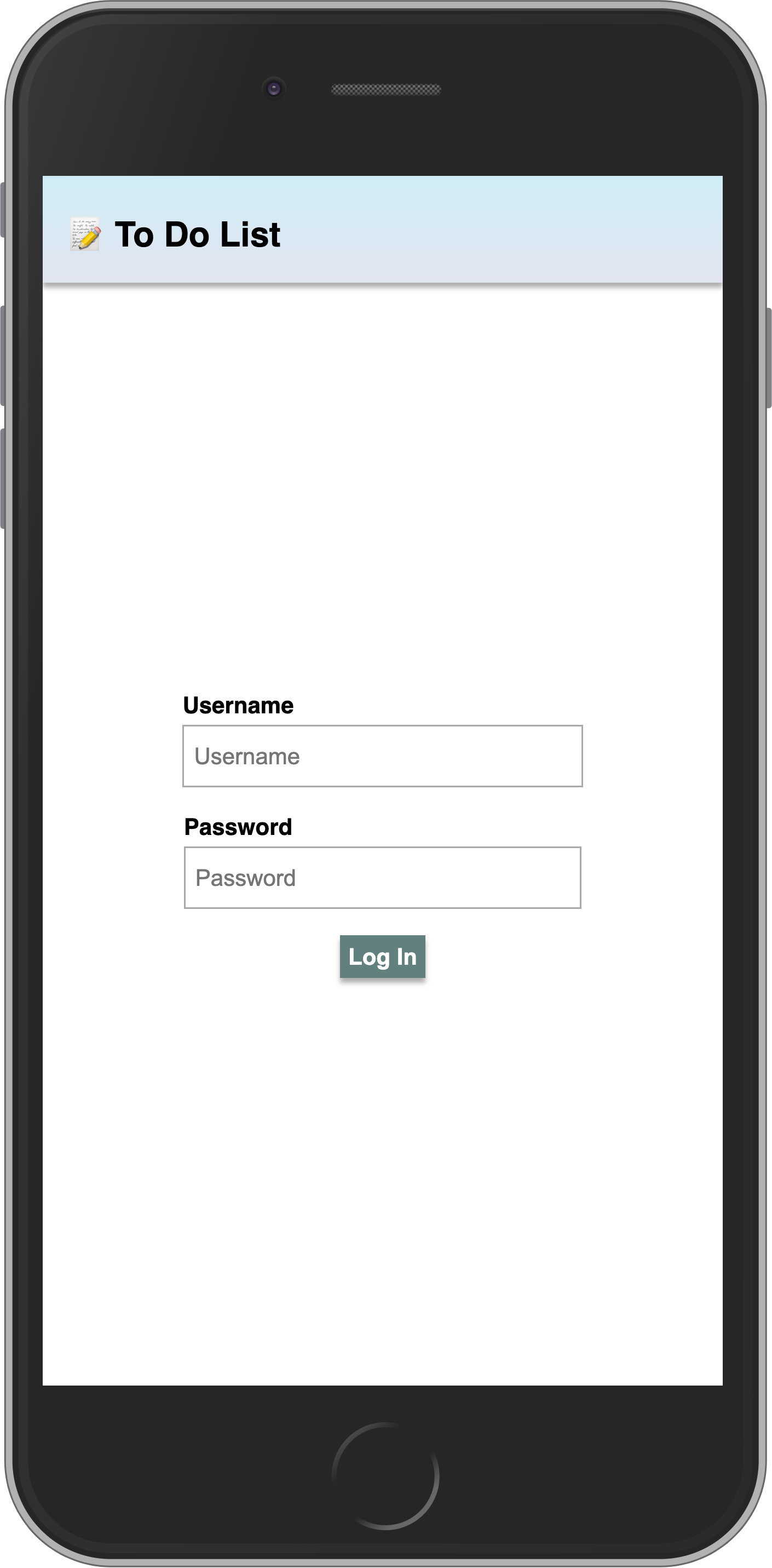
现在,你的登录表单应该集中且美观。
¥Now your login form should be centralized and beautiful.
7.6:服务器启动
¥7.6: Server startup
从现在开始,每个任务都应该有一个所有者。因此,正如你之前所了解的那样,转到你的数据库,并从那里删除所有任务:
¥Every task should have an owner from now on. So go to your database, as you learn before, and remove all the tasks from there:
db.tasks.remove({});
更改你的 server/main.js 以使用你的 meteorite 用户作为所有者添加种子任务。
¥Change your server/main.js to add the seed tasks using your meteorite user as owner.
确保在此更改后重新启动服务器,以便 Meteor.startup 块再次运行。无论如何,这可能都会自动发生,因为你将在服务器端代码中进行更改。
¥Make sure you restart the server after this change so Meteor.startup block will run again. This is probably going to happen automatically anyway as you are going to make changes in the server side code.
js
...

  const user = await Accounts.findUserByUsername(SEED_USERNAME);

  if ((await TasksCollection.find().countAsync()) === 0) {
    [
      "First Task",
      "Second Task",
      "Third Task",
      "Fourth Task",
      "Fifth Task",
      "Sixth Task",
      "Seventh Task",
    ].forEach((taskName) => {
      Meteor.callAsync("tasks.insert", {
        text: taskName,
        createdAt: new Date(),
        userId: user._id
      });
    });
  }

...
看到我们正在将一个名为 userId 的新字段与用户 _id 字段一起使用,我们还设置了 createdAt 字段。
¥See that we are using a new field called userId with our user _id field, we are also setting createdAt field.
7.7:任务所有者
¥7.7: Task owner
首先,让我们将发布更改为仅为当前登录的用户发布任务。这对于安全性很重要,因为你只发送属于该用户的数据。
¥First, let's change our publication to publish the tasks only for the currently logged user. This is important for security, as you send only data that belongs to that user.
js
import { Meteor } from "meteor/meteor";
import { TasksCollection } from "./TasksCollection";

Meteor.publish("tasks", function () {
  let result = this.ready();
  const userId = this.userId;
  if (userId) {
    result = TasksCollection.find({ userId });
  }

  return result;
});
现在让我们在尝试获取任何数据之前检查我们是否有 user:
¥Now let's check if we have a user before trying to fetch any data:
js
...
Template.mainContainer.helpers({
  tasks() {
    let result = [];
    if (isUserLoggedInChecker()) {
      const instance = Template.instance();
      const hideCompleted = instance.state.get(HIDE_COMPLETED_STRING);

      const hideCompletedFilter = { isChecked: { $ne: true } };

      result = TasksCollection.find(hideCompleted ? hideCompletedFilter : {}, {
        sort: { createdAt: -1, _id: -1 },
      }).fetch();
    }

    return result;
  },
  hideCompleted() {
    return Template.instance().state.get(HIDE_COMPLETED_STRING);
  },
  incompleteCount() {
    result = '';
    if (isUserLoggedInChecker()) {
      const incompleteTasksCount = TasksCollection.find({ isChecked: { $ne: true } }).count();
      result = incompleteTasksCount ? `(${incompleteTasksCount})` : '';
    }

    return result;
  },
  isUserLoggedIn() {
    return isUserLoggedInChecker();
  },
});
...
此外,更新 tasks.insert 方法以在创建新任务时包含字段 userId:
¥Also, update the tasks.insert method to include the field userId when creating a new task:
js
...
Meteor.methods({
  "tasks.insert"(doc) {
    const insertDoc = { ...doc };
    if (!('userId' in insertDoc)) {
      insertDoc.userId = this.userId;
    }
    return TasksCollection.insertAsync(insertDoc);
  },
...
7.8:注销
¥7.8: Log out
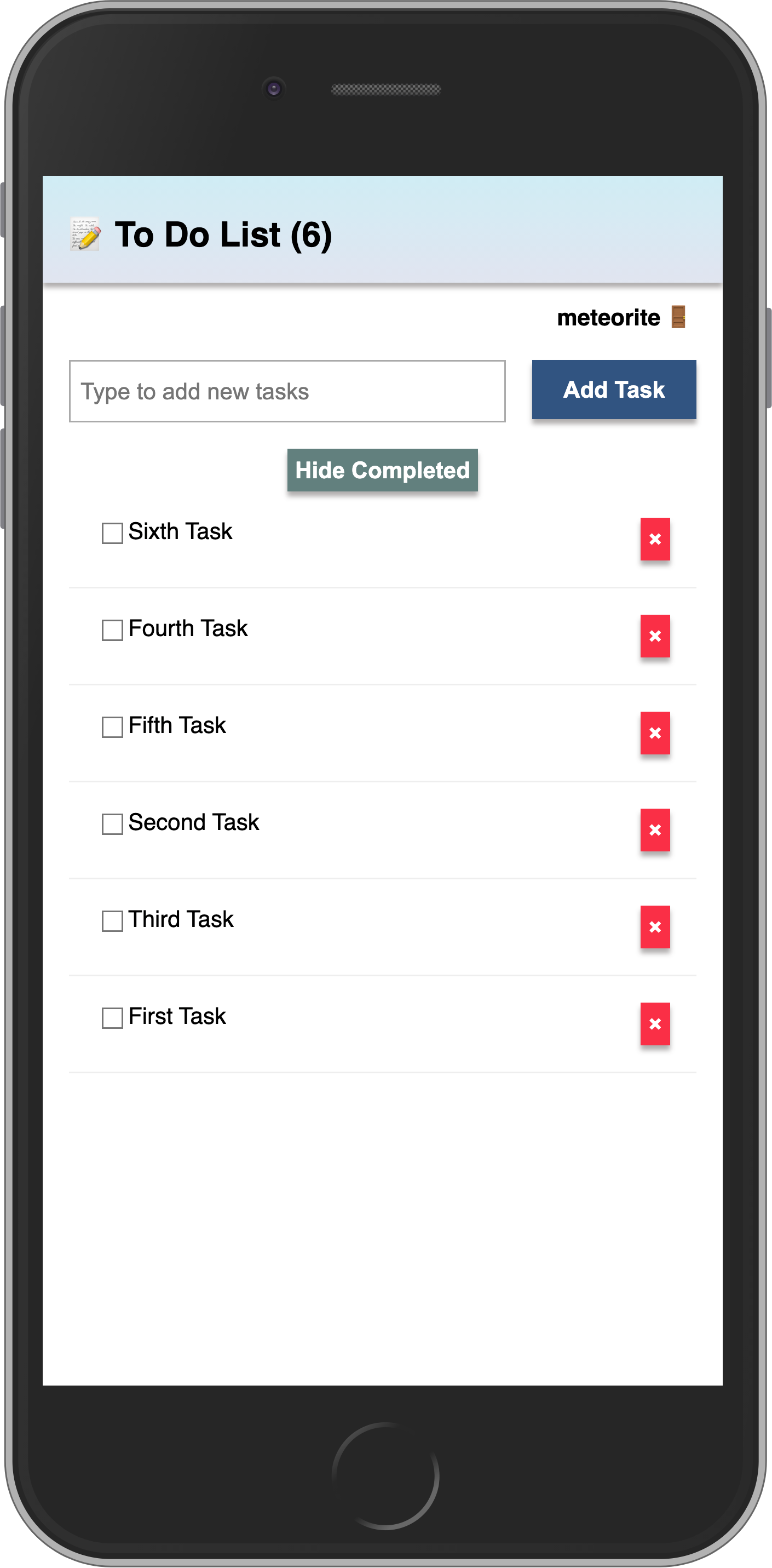
我们还可以通过在应用栏下方显示所有者的用户名来组织任务。我们添加一个新的 div,用户可以点击它来退出应用:
¥We can also organize our tasks by showing the owner’s username below our app bar. Let’s add a new div where the user can click and log out from the app:
html
...
<div class="main">
    {{#if isUserLoggedIn}}
        <div class="user">
            {{getUser.username}} 🚪
        </div>

        {{> form }}

...
现在,让我们创建 getUser 辅助组件,并实现用户点击 div 时注销的事件。注销操作通过调用函数 Meteor.logout() 完成:
¥Now, let’s create the getUser helper and implement the event that will log out the user when they click on this div. Logging out is done by calling the function Meteor.logout():
js
...

Template.mainContainer.events({
  ...,
  'click .user'() {
    Meteor.logout();
  },
});

...

Template.mainContainer.helpers({
  ...,
  getUser() {
    return getUser();
  },
});

...
请记住也要为你的用户名设置样式。
¥Remember to style your username as well.
css
.user {
  display: flex;

  align-self: flex-end;

  margin: 8px 16px 0;
  font-weight: bold;
  cursor: pointer;
}
呼!你在此步骤中做了很多工作。对用户进行身份验证,在任务中设置用户,并为用户提供注销方式。
¥Phew! You have done quite a lot in this step. Authenticated the user, set the user in the tasks, and provided a way for the user to log out.
你的应用应如下所示:
¥Your app should look like this:
在下一步中,我们将学习如何部署你的应用!
¥In the next step, we are going to learn how to deploy your app!
8:部署
¥8: Deploying
部署 Meteor 应用类似于部署任何其他使用 websockets 的 Node.js 应用。你可以在 我们的指南 中找到部署选项,包括 Meteor Up、Docker 和我们推荐的方法 Galaxy。
¥Deploying a Meteor application is similar to deploying any other Node.js app that uses websockets. You can find deployment options in our guide, including Meteor Up, Docker, and our recommended method, Galaxy.
在本教程中,我们将在 Galaxy 上部署我们的应用,这是我们自己的云解决方案。Galaxy 提供免费计划,因此你可以部署和测试你的应用。很酷,对吧?
¥In this tutorial, we will deploy our app on Galaxy, which is our own cloud solution. Galaxy offers a free plan, so you can deploy and test your app. Pretty cool, right?
8.1:创建你的账户
¥8.1: Create your account
你需要一个 Meteor 账户来部署你的应用。如果你还没有,可以使用 在此处注册。使用此账户,你可以访问我们的包管理器、Atmosphere、论坛 等。
¥You need a Meteor account to deploy your apps. If you don’t have one yet, you can sign up here. With this account, you can access our package manager, Atmosphere, Forums and more.
8.2:设置 MongoDB(可选)
¥8.2: Set up MongoDB (Optional)
由于你的应用使用 MongoDB,第一步是设置 MongoDB 数据库,Galaxy 提供免费计划的 MongoDB 托管以供测试,你还可以请求允许你扩展的生产就绪数据库。
¥As your app uses MongoDB the first step is to set up a MongoDB database, Galaxy offers MongoDB hosting on a free plan for testing purposes, and you can also request for a production ready database that allows you to scale.
在任何 MongoDB 提供商中,你都会有一个必须使用的 MongoDB URL。如果你使用 Galaxy 提供的免费选项,则初始设置已为你完成。
¥In any MongoDB provider you will have a MongoDB URL which you must use. If you use the free option provided by Galaxy, the initial setup is done for you.
Galaxy MongoDB URL 将如下所示:mongodb://username:<password>@org-dbname-01.mongodb.galaxy-cloud.io .
¥Galaxy MongoDB URL will be like this: mongodb://username:<password>@org-dbname-01.mongodb.galaxy-cloud.io .
你可以阅读更多关于 Galaxy MongoDB 此处 的信息。
¥You can read more about Galaxy MongoDB here.
8.3:设置设置
¥8.3: Set up settings
如果你没有使用免费版本,则需要创建一个配置文件。这是一个 Meteor 应用可以从中读取配置的 JSON 文件。在项目根目录中名为 private 的新文件夹中创建此文件。需要注意的是,private 是一个特殊文件夹,不会发布到应用的客户端。
¥If you are not using the free option, then you need to create a settings file. It’s a JSON file that Meteor apps can read configurations from. Create this file in a new folder called private in the root of your project. It is important to notice that private is a special folder that is not going to be published to the client side of your app.
确保将 Your MongoDB URL 替换为你自己的 MongoDB URL 😃
¥Make sure you replace Your MongoDB URL by your own MongoDB URL 😃
json
{
  "galaxy.meteor.com": {
    "env": {
      "MONGO_URL": "Your MongoDB URL"
    }
  }
}
8.4:部署它
¥8.4: Deploy it
现在你已准备好部署,请在部署之前运行 meteor npm install 以确保安装了所有依赖。
¥Now you are ready to deploy, run meteor npm install before deploying to make sure all your dependencies are installed.
你还需要选择一个子域来发布你的应用。我们将使用免费的主域 meteorapp.com,它包含在任何 Galaxy 计划中。
¥You also need to choose a subdomain to publish your app. We are going to use the main domain meteorapp.com that is free and included on any Galaxy plan.
在此示例中,我们将使用 blaze-meteor-3.meteorapp.com,但请确保你选择其他 XX,否则你将收到错误。
¥In this example we are going to use blaze-meteor-3.meteorapp.com but make sure you select a different one, otherwise you are going to receive an error.
你可以了解如何在 Galaxy 此处 上使用自定义域。从 Essentials 计划开始,可以使用自定义域。
¥You can learn how to use custom domains on Galaxy here. Custom domains are available starting with the Essentials plan.
运行部署命令:
¥Run the deployment command:
shell
meteor deploy blaze-meteor-3.meteorapp.com --free --mongo如果你没有在 Galaxy 上使用 MongoDB 的免费托管,请从部署脚本中删除
--mongo标志,并使用适合你应用的设置添加--settings private/settings.json。¥If you are not using the free hosting with MongoDB on Galaxy, then remove the
--mongoflag from the deploy script and add--settings private/settings.jsonwith the proper setting for your app.
确保将 blaze-meteor-3 替换为你想要用作子域的自定义名称。你将看到如下日志:
¥Make sure you replace blaze-meteor-3 by a custom name that you want as subdomain. You will see a log like this:
shell
meteor deploy blaze-meteor-3.meteorapp.com --settings private/settings.json
Talking to Galaxy servers at https://us-east-1.galaxy-deploy.meteor.com
Preparing to build your app...
Preparing to upload your app...
Uploaded app bundle for new app at blaze-meteor-3.meteorapp.com.
Galaxy is building the app into a native image.
Waiting for deployment updates from Galaxy...
Building app image...
Deploying app...
You have successfully deployed the first version of your app.
For details, visit https://galaxy.meteor.com/app/blaze-meteor-3.meteorapp.com
此过程通常只需几分钟,但这取决于你的互联网速度,因为它会将你的应用包发送到 Galaxy 服务器。
¥This process usually takes just a few minutes, but it depends on your internet speed as it’s going to send your app bundle to Galaxy servers.
Galaxy 构建一个包含你的应用包的新 Docker 映像,然后使用它部署容器,阅读更多。你可以查看 Galaxy 上的日志,包括 Galaxy 构建 Docker 映像并部署它的部分。
¥Galaxy builds a new Docker image that contains your app bundle and then deploy containers using it, read more. You can check your logs on Galaxy, including the part that Galaxy is building your Docker image and deploying it.
8.5:访问应用并享受
¥8.5: Access the app and enjoy
现在,你应该能够在 https://galaxy.meteor.com/app/blaze-meteor-3.meteorapp.com 访问你的 Galaxy 仪表板。
¥Now you should be able to access your Galaxy dashboard at https://galaxy.meteor.com/app/blaze-meteor-3.meteorapp.com.
你还可以在 Galaxy 2.0 上访问你的应用,该应用目前处于 https://galaxy-beta.meteor.com/<your-username>/us-east-1/apps/<your-app-name>.meteorapp.com 测试阶段。请记住使用你自己的子域而不是 blaze-meteor-3。
¥You can also access your app on Galaxy 2.0 which is currently in beta at https://galaxy-beta.meteor.com/<your-username>/us-east-1/apps/<your-app-name>.meteorapp.com. Remember to use your own subdomain instead of blaze-meteor-3.
你可以在 blaze-meteor-3.meteorapp.com 访问应用!只需使用你的子域即可访问你的子域!
¥You can access the app at blaze-meteor-3.meteorapp.com! Just use your subdomain to access yours!
我们部署到在美国(us-east-1)运行的 Galaxy,我们也在世界其他地区运行 Galaxy,请查看列表 此处。这很重要,你的应用在 Galaxy 上运行,可供世界上任何人使用!
¥We deployed to Galaxy running in the US (us-east-1), we also have Galaxy running in other regions in the world, check the list here. This is huge, you have your app running on Galaxy, ready to be used by anyone in the world!
9:后续步骤
¥9: Next Steps
你已完成本教程!
¥You have completed the tutorial!
现在,你应该对 Meteor 和 Blaze 的使用有了很好的理解。
¥By now, you should have a good understanding of working with Meteor and Blaze.
信息
你可以在我们的 GitHub 存储库 中找到此应用的最终版本。
¥You can find the final version of this app in our GitHub repository.
以下是你接下来可以执行的一些选项:
¥Here are some options for what you can do next:
查看完整的 documentation 以了解有关 Meteor 3 的更多信息。
¥Check out the complete documentation to learn more about Meteor 3.
阅读 Galaxy 指南 以了解有关部署应用的更多信息。
¥Read the Galaxy Guide to learn more about deploying your app.
加入我们的 Meteor 论坛 和 Meteor Lounge Discord 社区,提出问题并分享你的经验。
¥Join our community on the Meteor Forums and the Meteor Lounge on Discord to ask questions and share your experiences.
我们迫不及待地想看看你接下来会构建什么!
¥We can't wait to see what you build next!